
If you’re a Camo user, chances are you’re interested in the various ways you can make your video calls better. Using your iPhone as a webcam is going to give you a much better picture quality, but what about the setup? Once you’ve got the perfect mount, you can just plug your iPhone in and go.
We also recommend that you also turn off notifications on your iPhone while on calls, to prevent distractions, and turn off Orientation Lock, so your iPhone rotates your picture automatically. Luckily, you can use shortcuts in iOS 14.5 to toggle Orientation Lock and notifications off and on automatically when launching and closing Camo.
We’ve outlined the process below. It takes about 5 minutes to setup, after which Orientation Lock and Do Not Disturb will automatically be disabled or enabled when opening and closing Camo. Here's how to do it:
- Go to
Shortcutson your iPhone. - Select
Automation→+→Create Personal Automation→ scroll down and selectApp
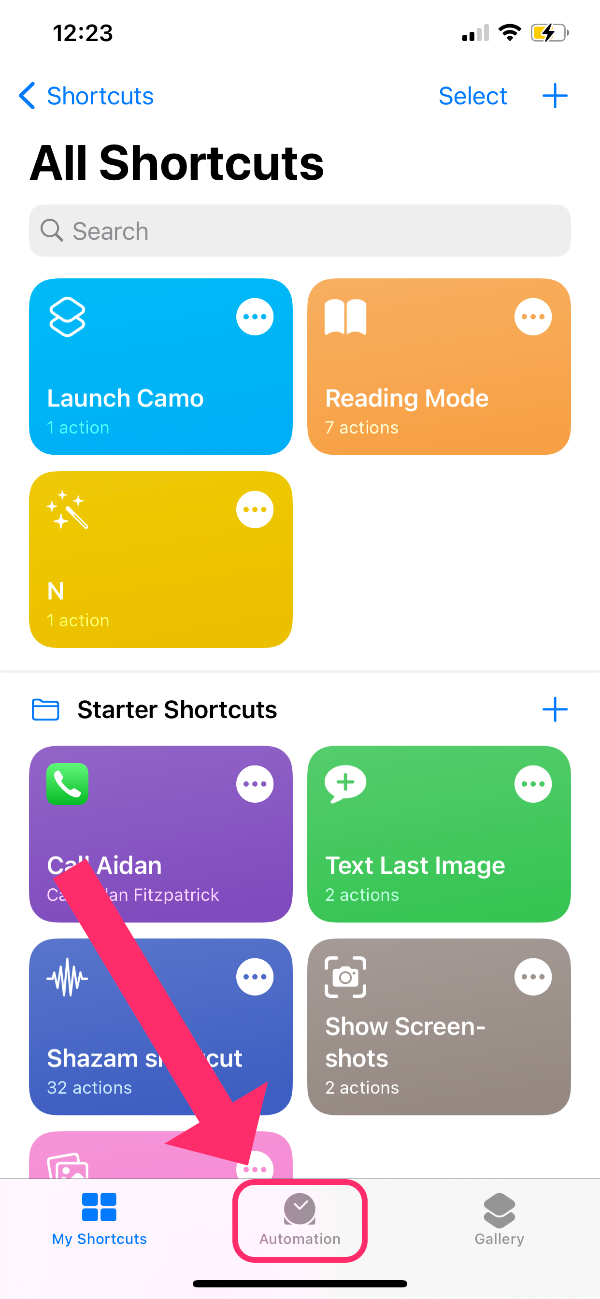
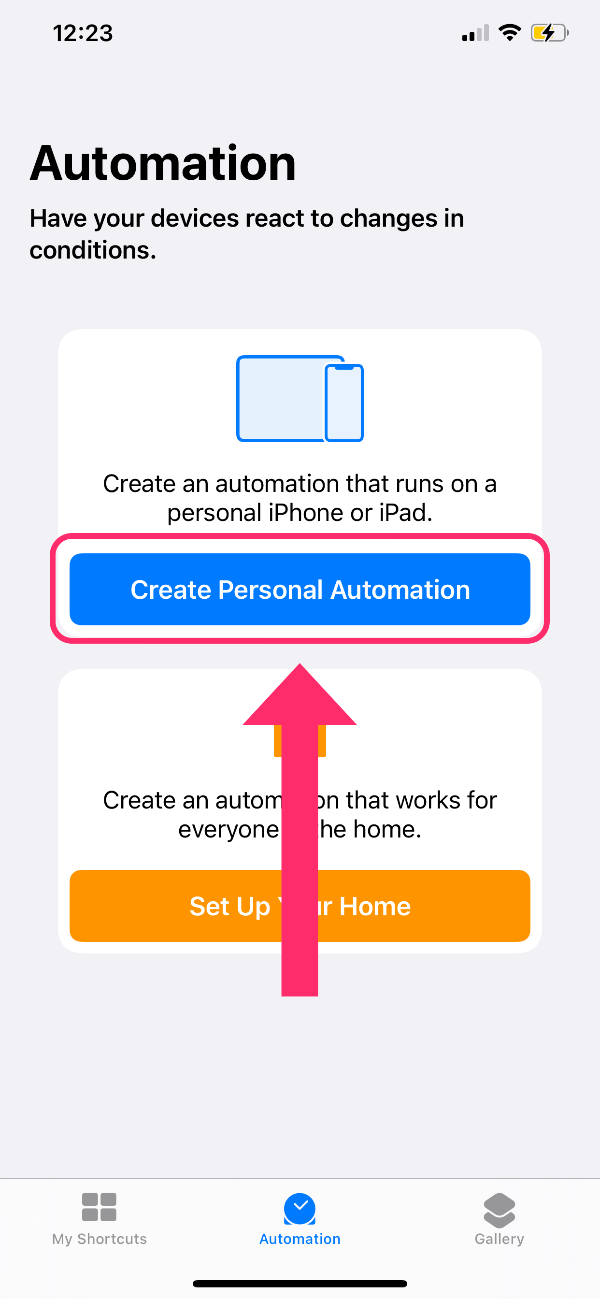
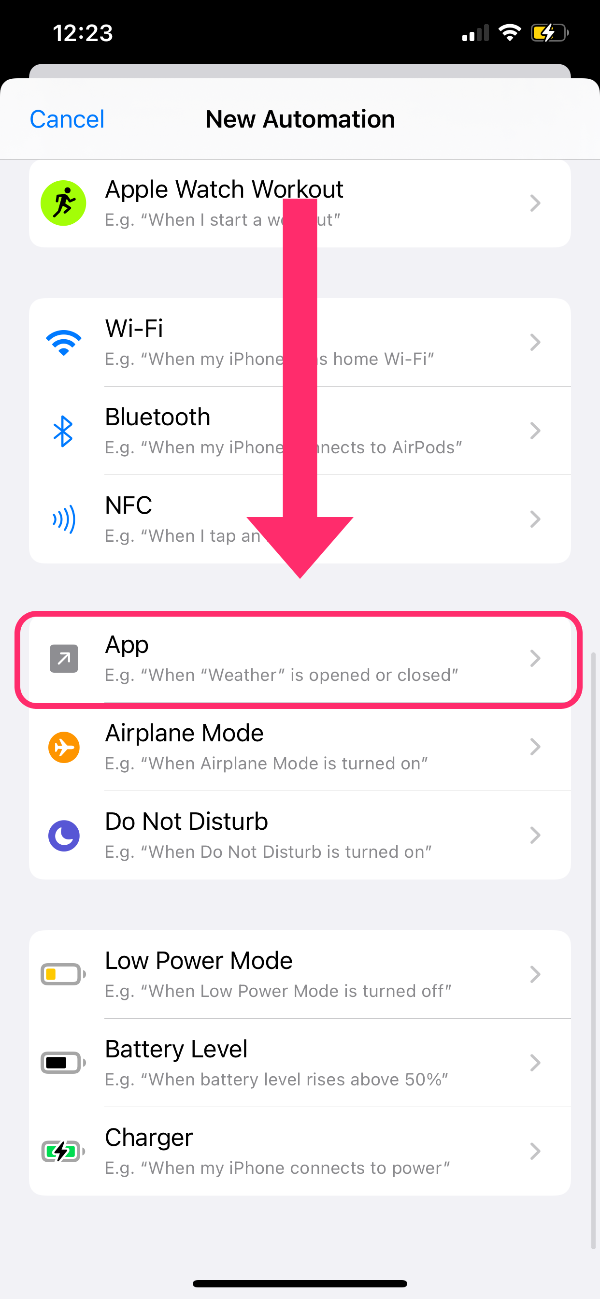
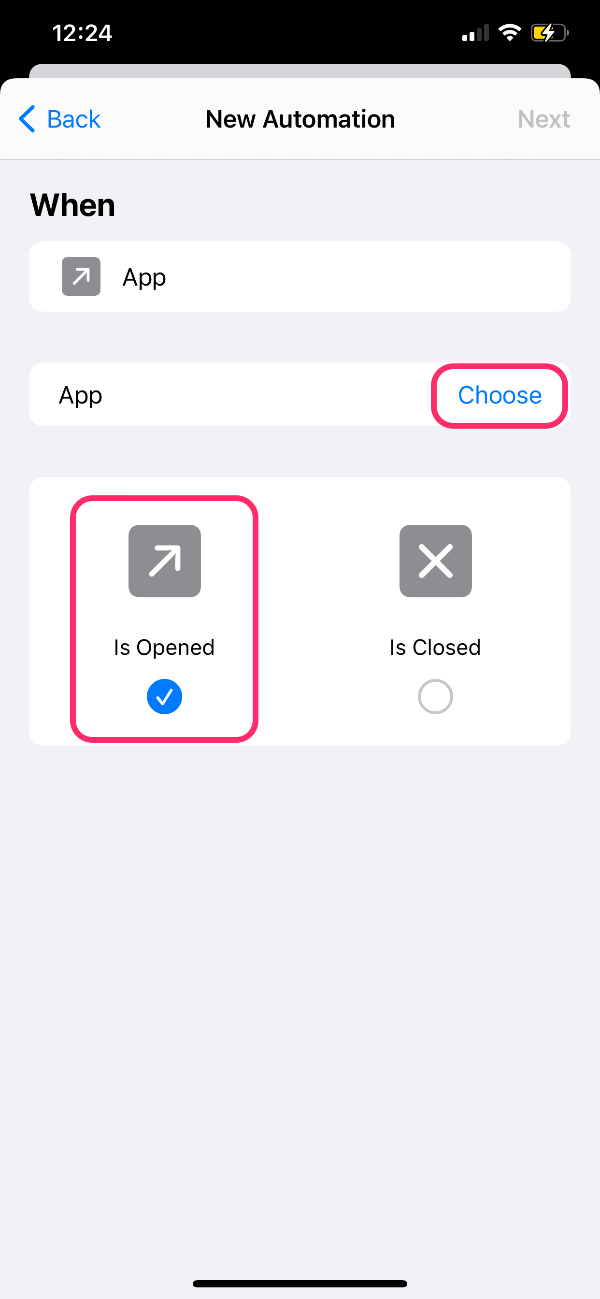
Creating a Personal Automation for Camo.
- Tap
Chooseand scroll down or use the search bar to find Camo, tap to select Camo, and selectDone. - Select
is openedand clickNext. - Add action, type ‘do not disturb’ and select
Set Do Not Disturb. - Tap to change the scripting to
Turn Do Not Disturb On until Turned Off. - Tap the blue
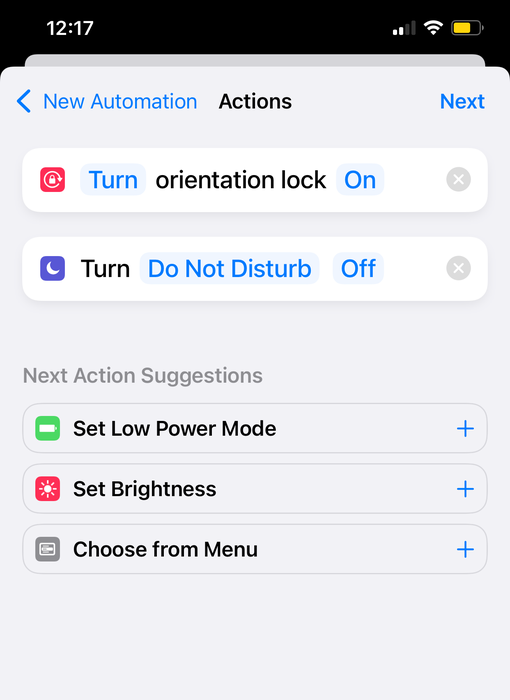
+to addSet Orientation Lock, and tap to change the scripting toTurn Orientation Lock Off - Click
Next, uncheckAsk Before Runningto allow this shortcut to run automatically, and tapDone.
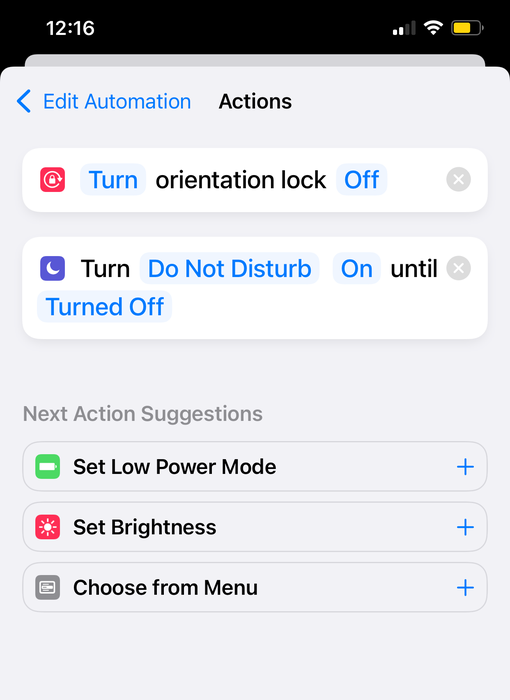
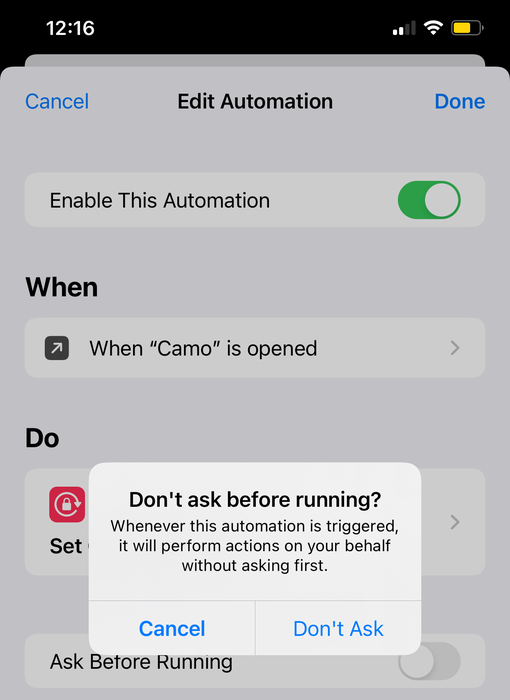
toggle 'ask before running' off to allow the shortcuts to run automatically.
Now, when you open Camo, your shortcuts should run automatically.
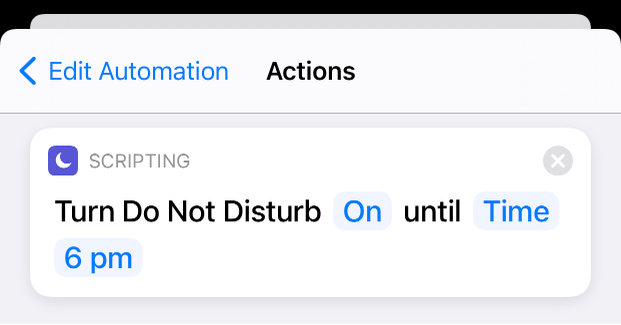
You can use this shortcut to turn Do Not Disturb off at a specific time
Next, you need to create shortcuts to turn these settings off when you come out of Camo (you won't need to close the app, the shortcuts will be applied by simply coming out of Camo). Here's how to turn your Camo shortcuts off when leaving Camo:
Shortcuts→Automation→+→Create Personal AutomationApp→Choose→Camo- uncheck
Is Opened, checkIs Closed→Next tap+→Set Do Not Disturb→ change scripting toTurn Do Not Disturb Off`+→Set Orientation Lock→ change scripting toTurn Orientation Lock OnNext→ toggle offAsk Before Running
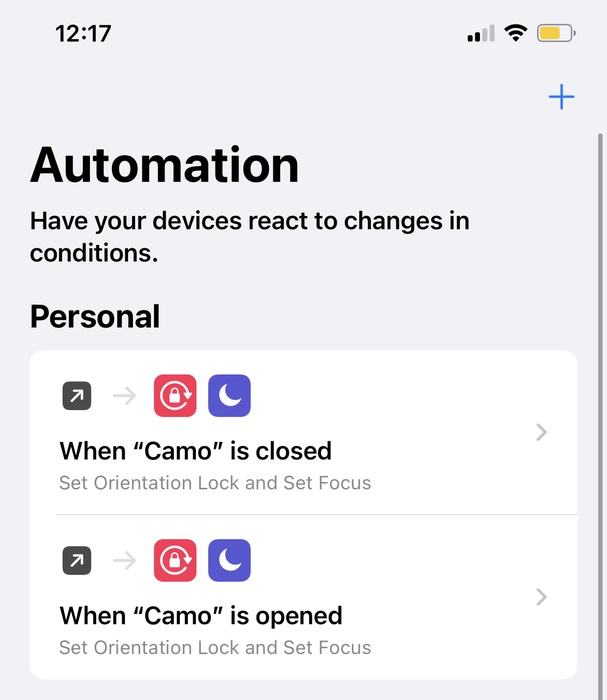
your completed automations will look like this