
If you run Camo on a dedicated iPhone, rather than the phone you use day-to-day, you can set up ‘Single App mode’ to make running Camo quicker - just click the home button and you’re sorted!
We’ve outlined how to get started with Single App mode using an iPhone and Mac below. Special thanks to Camo user and software developer Simon B. Støvring for pioneering this.
To set your iPhone to Single App mode you’lll need to connect your phone to your computer and download free software to configure your phone. The process is reversible, but you’ll need to use the same software and computer to reverse the process.
##How to lock your iPhone to Camo-only mode
- Download Apple Configurator to your Mac
- Disable Find My from your phone
Settings→Your Name→Find My→Find My iPhone→ toggle off. - Connect your iPhone to your Mac via cable, and tell your iPhone to trust your computer if you haven’t already done so. You should see your iPhone appear in Apple Configurator.
- Click on your iPhone in Apple Configurator. From the top bar, select
Actions→Advanced→Start Single App Mode…
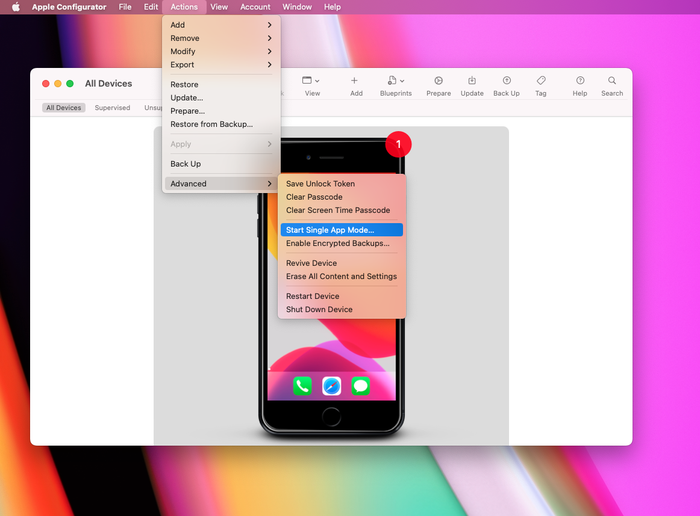
Start Single App mode to begin the process
- You’ll see a popup stating that your iPhone isn’t supervised yet (unless, for some reason, it already is), so click
Prepareto create a supervisor mode - Select to prepare with
Manual Configuration, untick ‘Allow devices to pair with other computers’ for added security and clickNext→Next(do not enroll in MDM) → Select 'New Organisation' thenNext→Skipthe Apple ID login → Add any name, such as 'Camo' then clickNext→ select 'Generate a new supervision identity',Next→Prepare.
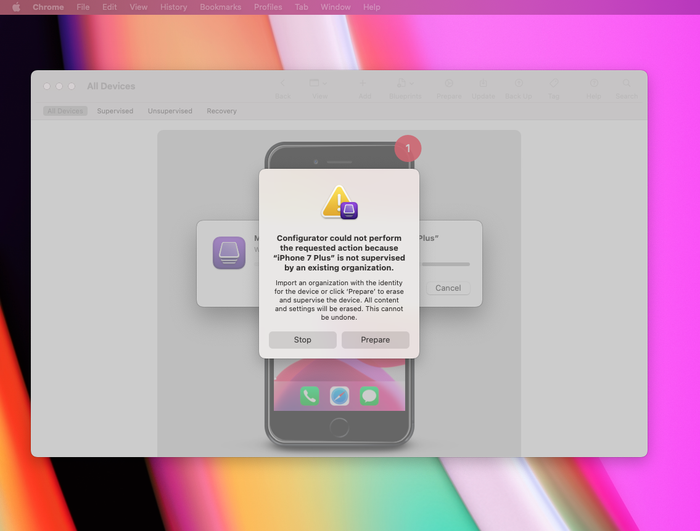
Select Prepare to create a new supervisor
!!! info "You are about to erase your iPhone"
    You will need to erase an existing supervisor at this stage - make sure you have any important information on your iPhone backed up before proceeding
- Once the new supervisor has been created, you’ll see a popup with a list of apps, but Camo won’t appear there yet. As you’ve erased your iPhone, you’ll need to set it up again. Choose ‘no password’ when setting up, to make unlocking your iPhone quicker. You’ll need to download Camo again, connect your iPhone to Apple Configurator, and select
Actions→Advanced→Start Single App Mode…and select Camo from the list
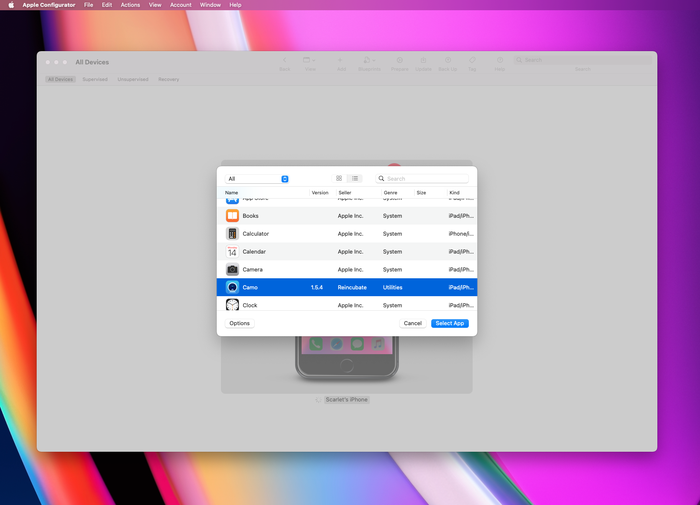
Select Camo from the list of apps
Your iPhone should now automatically unlock to Camo, and should be locked to that app. Every so often you’ll need to take your iPhone out of Single User Mode in order to update the Camo app. To do so, connect your iPhone to your Mac and run Apple Configurator, select your iPhone and click Actions → Advanced → Stop Single App Mode…, which will give you access to the rest of your iPhone’s controls again.
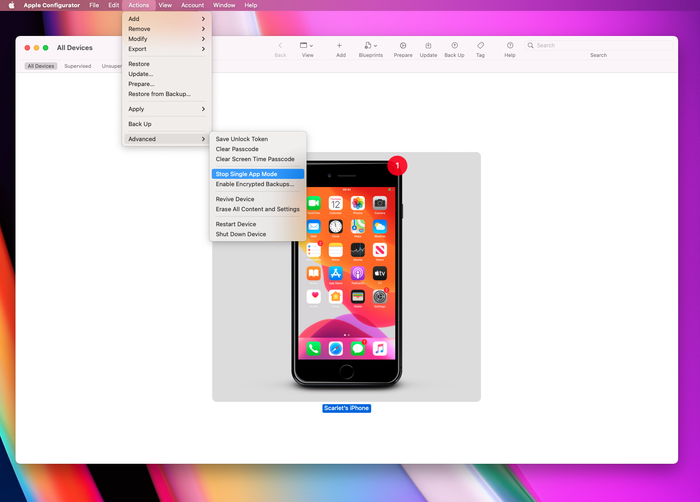
Disable Single App mode to update Camo
##Unlocking your iPhone
You’ll be able to lock your iPhone by pressing the home button, but unlocking will depend on the type of iPhone you have. If your iPhone has a home button, you can simply tap the home button to unlock (and you probably want to disable TouchID to make this quicker). If there is no home button, you’ll need to tap the home button and swipe up on your phone (or to the side, if your iPhone is mounted in landscape orientation).
If this is too fiddly, you can use the iPhone’s Accessibility settings to enable back tap instead. Using a double back tap to launch the Home screen will instead launch Camo in Single App mode, but you’ll still need to tap the home button before back tapping.