
We’ve written before about how to use iPhone Shortcuts to do things like toggle Orientation Lock while using Camo, but you can also use Shortcuts from your Mac to streamline common actions in Camo, too.
Using Shortcuts on macOS, you can use keyboard shortcuts to do things like:
Here’s how to find shortcuts for Camo on your Mac.
- Open the Shortcuts app on your Mac.
- Type
⌘N, click+orFile→New Shortcutin the top right navigation bar. - In the search bar on the right-hand side, type ‘Camo’ and click the Camo Studio app to see the various actions you can perform with Shortcuts in the Camo macOS app.
Using Shortcuts to Play and Pause your video feed
- Open the Shortcuts app on your Mac.
⌘N,+orFile→New Shortcutin the top right navigation bar.- In the search bar on the righthandside, type ‘set play’ and double click to add Camo’s
Set Play/Pauseshortcut. - Your Shortcut should show
Play Feed. ClickPlayto change this toToggle.
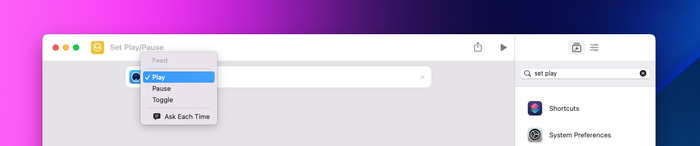
Select ‘Play’ in your shortcut to change this interaction

Select ‘Toggle’ to use one shortcut to switch between pause and play
- To bind this to a keyboard shortcut, click the adjustments icon on the top right and select
Add Keyboard Shortcut. - Type in your shortcut, for example,
Shift+Ctrl+Y.
Using Shortcuts to switch between cameras
- You’ll need to set up two (or more) shortcuts for this to work, one for each camera in Camo.
- As a new shortcut, double click
Set Devicefrom the Camo shortcuts list. - Click device, and select the your first camera.
- Add a keyboard shortcut by selecting the adjustments tab in the top far right →
Add Keyboard Shortcut.
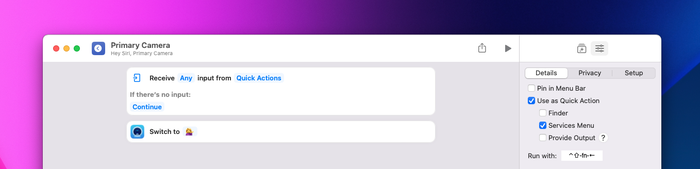
Include the name of your device, the device shown here is named ‘ 💁♀️’
- Repeat these steps to create a separate shortcut for your other camera(s). It can help to create keyboard shortcuts that are near each other (such as
Ctrl+Shift+[withCtrl+Shift+]).
Combining Shortcuts
You can add multiple actions to one shortcut to create settings for different use cases. Camo will remember your last used settings for each device, but if you want to switch between different settings on one device, creating a shortcut with these settings can be helpful.
To do so, search ‘camo set’ to find the shortcuts that allow you to change settings, and add as many as you need.
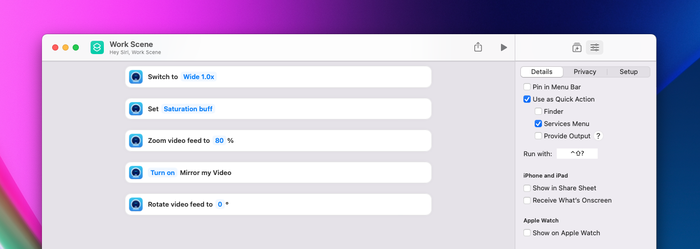
This shortcut combines camera lens, a preset to add saturation, Zoom, mirroring the video and setting the rotation