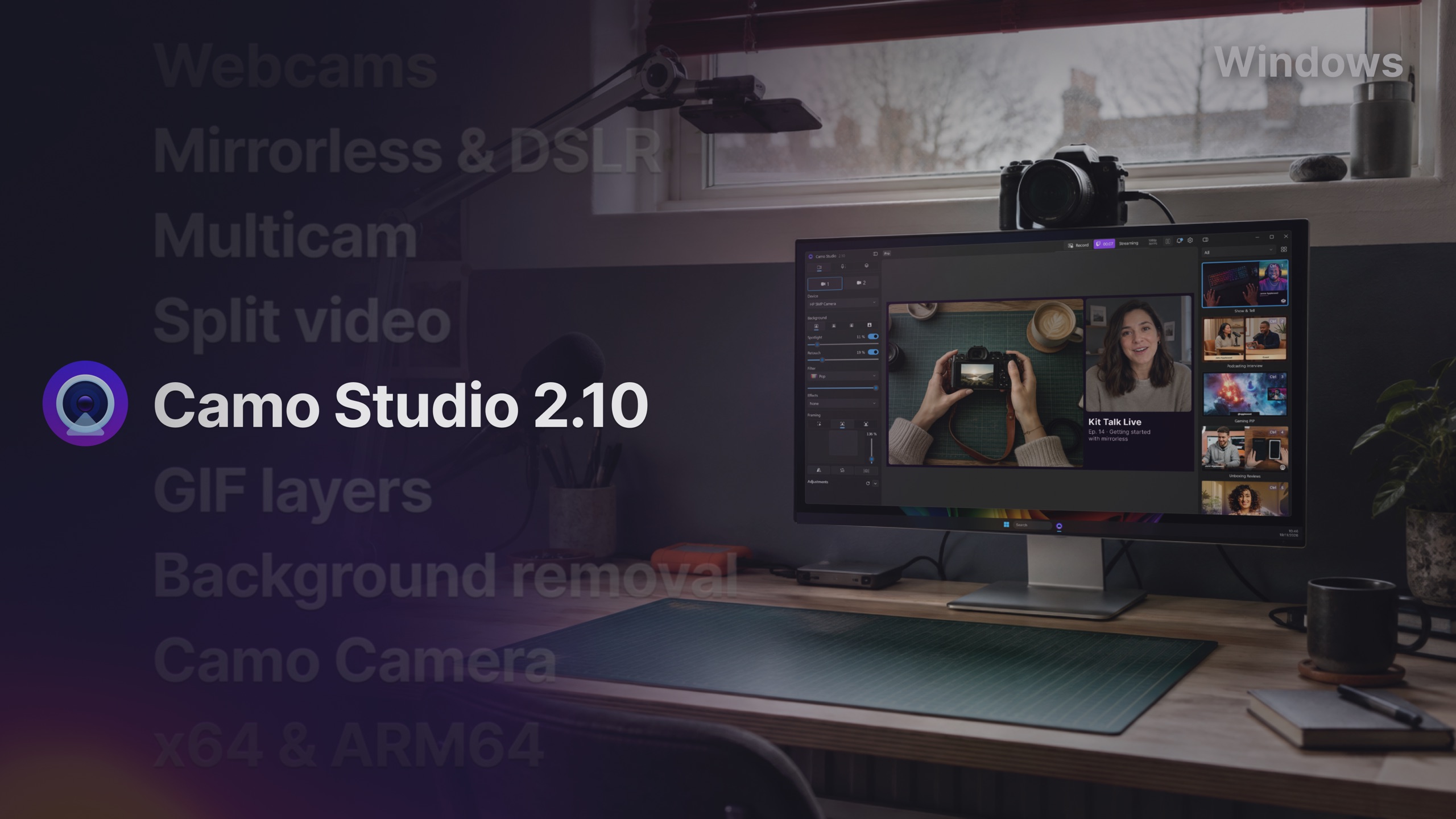
Camo Studio 2.10 has arrived on Windows, and it’s all about giving you even more flexibility for your video. Following the multistreaming and web layers we brought to PC in 2.9, this release makes Multicam a full feature, so you can use multiple cameras at once. It also adds support for split video, introduces background removal for iPhones connected with Camo Camera, and brings GIF layers to your scenes. Get the update to try it out, and read on for a closer look at what’s new and why we built it.
What’s new in 2.10
Multiple cameras, one scene: Multicam comes into its own on Windows
Mac users have had Multicam for a while, and Windows users have been getting it in stages, starting with an Add-on. Camo Studio 2.10 closes that gap: Multicam is now a full feature of the app, and multi-camera setups are fully supported.
Your second camera is now just as capable as your first. Bring in a webcam, a mirrorless or DSLR through a capture card, or your phone running Camo Camera, and each one gets the full set of camera settings and effects. You can even use the same camera in several layers at once, each with its own zoom and position.
Getting started is easy. There are ready-made multi-camera scenes in the galleries, or you can build your own: connect your camera, add a new video layer in the Scene Editor, and resize it to sit over or beside your primary camera.
From there, it’s up to you. Keep your best camera on you while another catches a whiteboard, a document or your desk. Point your DSLR at yourself and your phone down at the pan for a cooking stream. Use your phone as a facecam over your gameplay.
Already using the Multicam Add-on? It moves into the app automatically when you update.
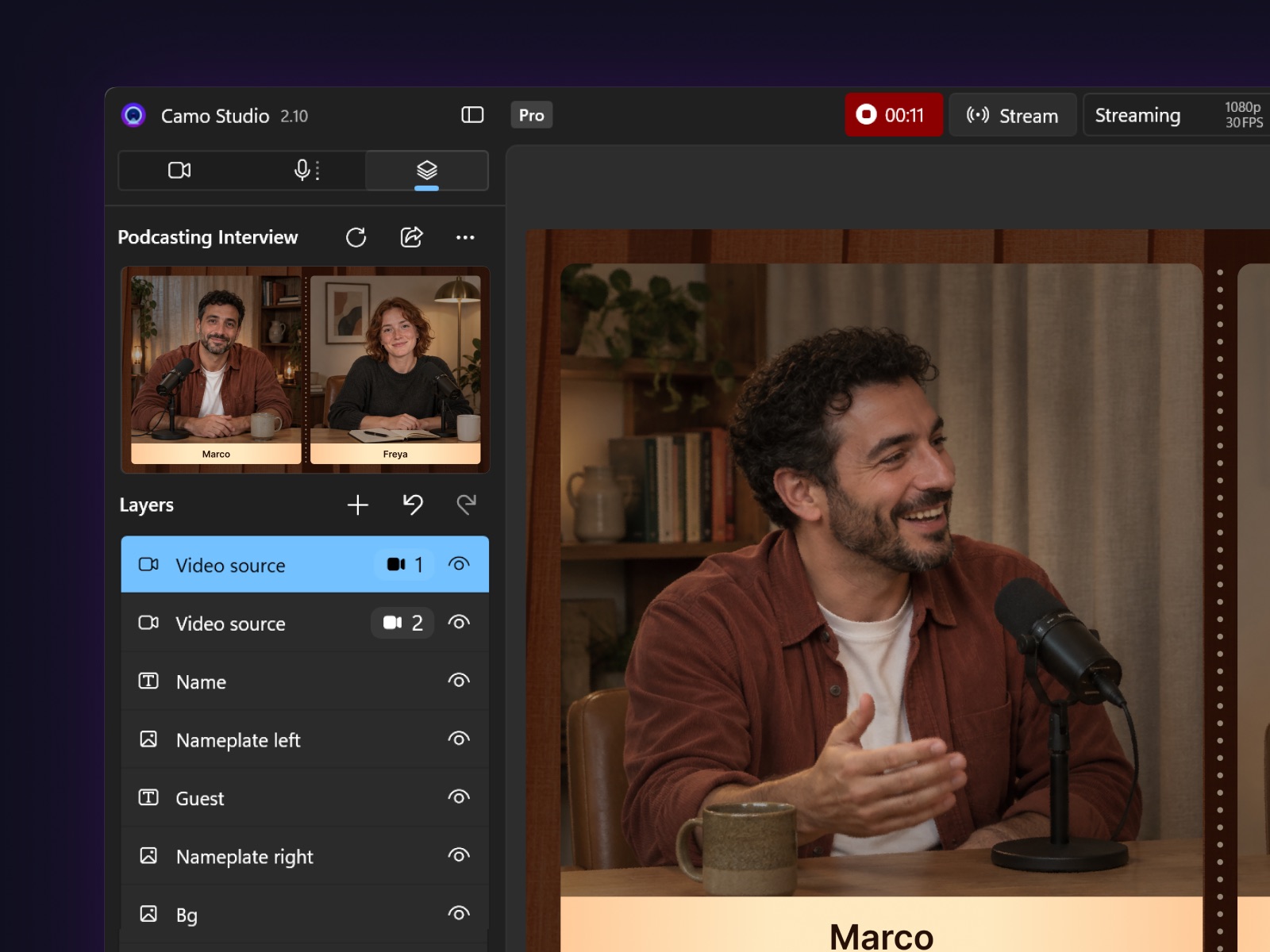
Two hosts, two cameras, one podcast scene
Split video scenes, and background removal with iPhone
Split video, which came to Mac in Camo Studio 2.8, is now on Windows. Split your video layer in the Scene Editor, and Camo separates you from your background, so you can slot other layers in between. Text, images, graphics and GIFs then sit behind you but in front of the room.
Put your channel name, company logo or a title behind your shoulders, and it stays put as you move. For a subtler look, add a pattern or a colour and turn down its opacity. To get you started, there are three new split video scenes in the Professional gallery. Use them as they are, or as a starting point for your own design.
Split video works with webcams, and now with your iPhone too. With 2.10, Camo’s Remove background mode becomes available for connected iPhones, so you can build a split video scene around yours or add it as a cut-out PiP facecam over your primary video.
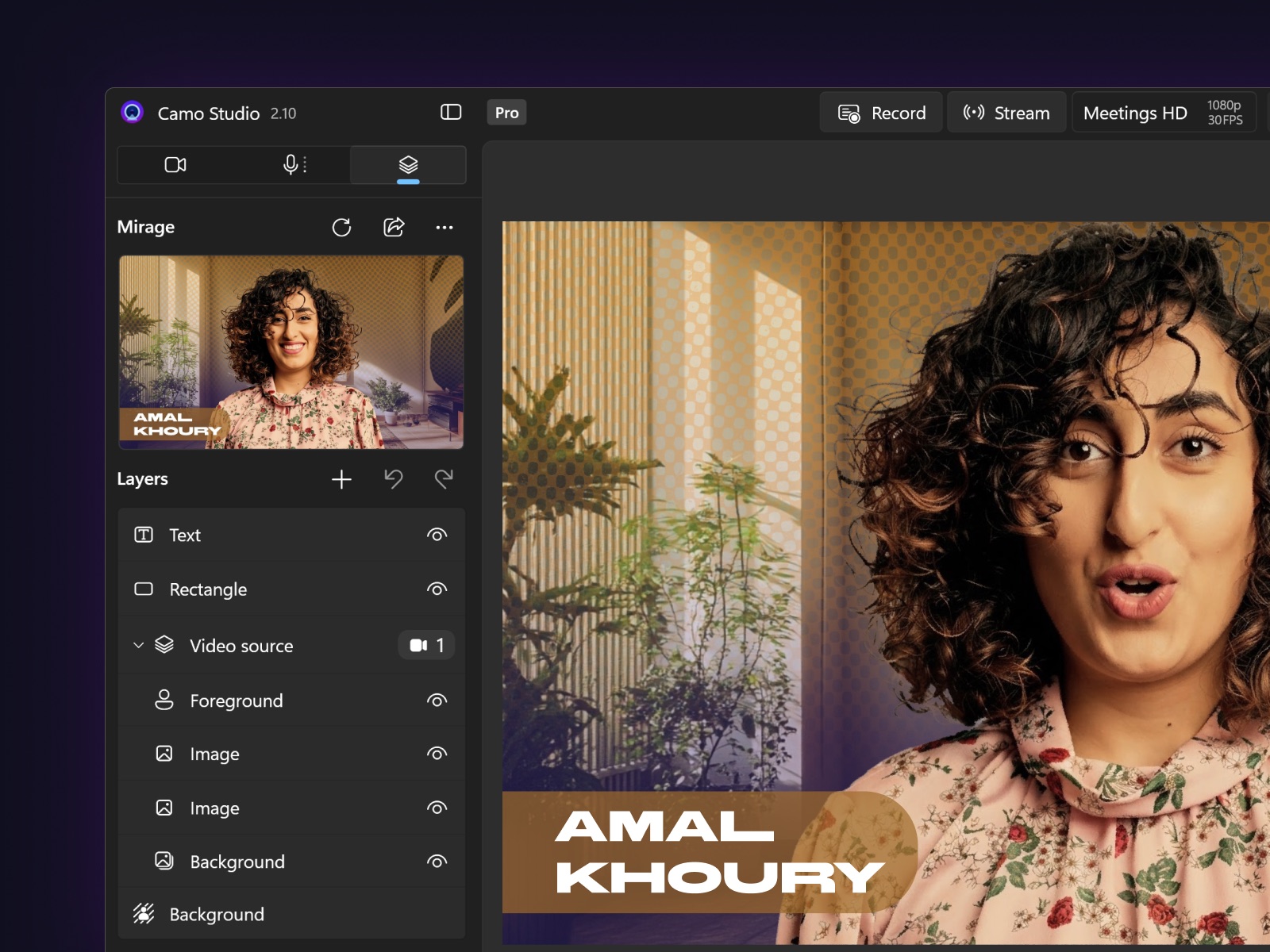
One of Camo’s split video scenes, with a pattern and gradient placed between the presenter and the background
GIFs in your scenes
Sometimes a scene needs a little movement. Sometimes you’ve just gotta meme. You can now add animated GIFs anywhere in your scenes, including your background, for reactions, emotes and badges that keep things lively.
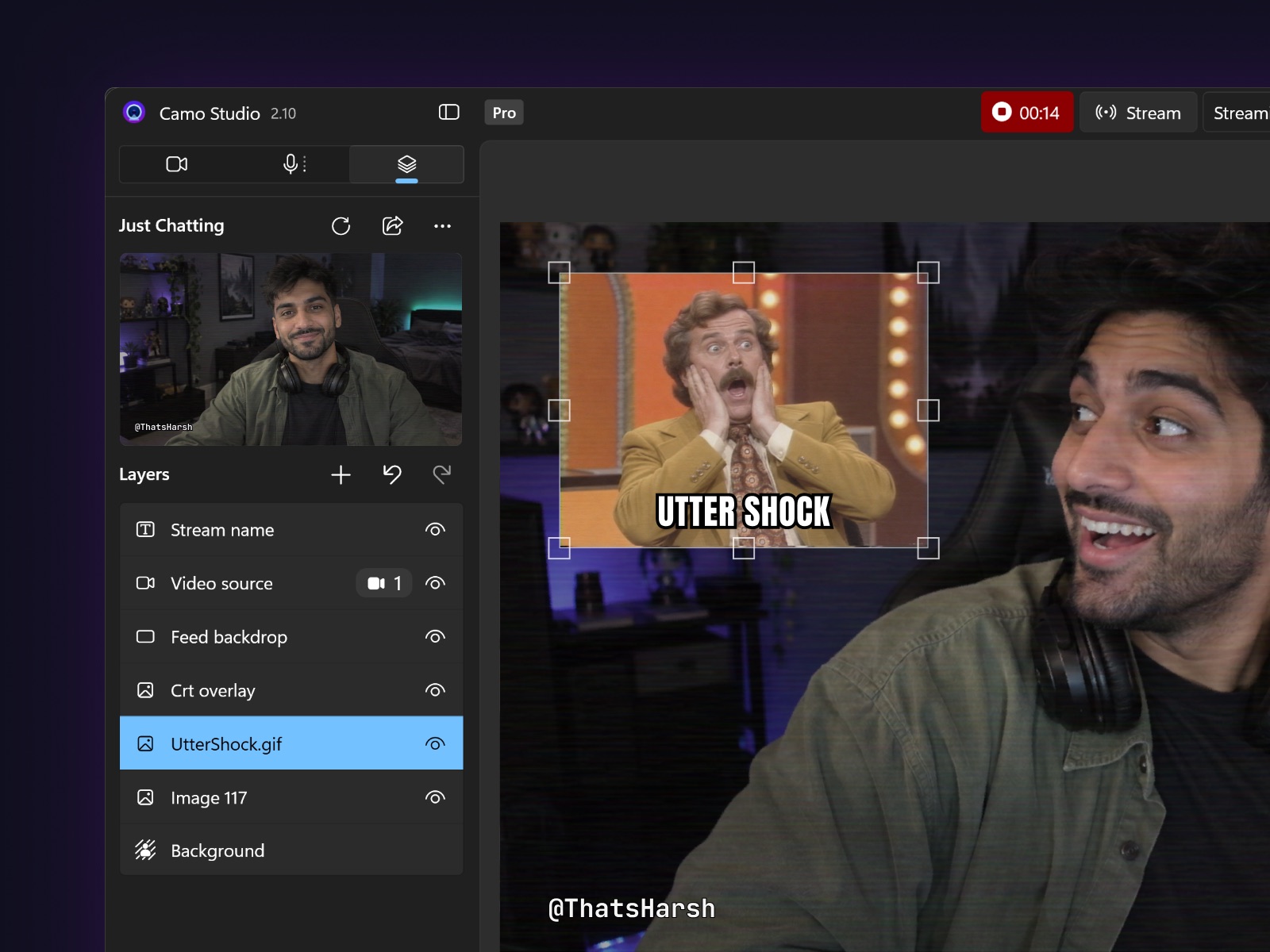
A reaction GIF layered into a streamer’s scene
Ready to make a Scene?
Camo Studio 2.10 is available now for Windows 10 and later. Update today from camo.com or the Microsoft Store and try out the new features. For the complete list of improvements and fixes in this release, check out our full Windows release notes.
As always, thank you for being part of the Camo journey. We can’t wait to see what you make with every camera you’ve got!