

Lost vital health or fitness data from your Apple Watch? Overwritten Apple Watch data from a previous backup, and need it back? You can use this guide to find, view and extract data backups of your Apple Watch to your computer.
How do I back up an Apple Watch?
Apple Watch backups don't work independently like regular iOS backups. Instead, your Apple Watch is backed up to your paired iOS device (typically your iPhone). Apple Watch backups are taken automatically, usually on a daily basis. There's no simple way of forcing a Watch backup to happen immediately, other than by unpairing and erasing the Watch, which can be a time-consuming process. Before your watch unpaired, a new Apple Watch backup is created and stored on your iPhone, so that you can restore the Watch data later, either to the same Apple Watch or a different one.
Bought a new Apple Watch and need to transfer your data? Find out how here.
When your iPhone is backed up, all of its contents -- including the Apple Watch backup -- are stored within this backup. What that means is that you can't trigger an external Apple Watch backup automatically. Instead, you have to ensure it gets backed up to your iPhone, and then back up your iPhone.
To review, to create an Apple Watch backup that can be accessed from a computer:
- Unpair your Apple Watch from your iPhone. (You can pair it again immediately afterwards)
- Create a backup of your iPhone to your computer, using Finder or iTunes.
Learn more about iPhone backups with our article How to back up an iPhone — three simple ways.
How to find Apple Watch backups
If you'd like to see when your Watch backups were taken, and how much storage they're using, you can do so using your paired iPhone. Go to Settings → General → iPhone Storage → Watch. That'll show you how much space is being taken overall, and list every Watch backup you have, along with the date each backup was taken.
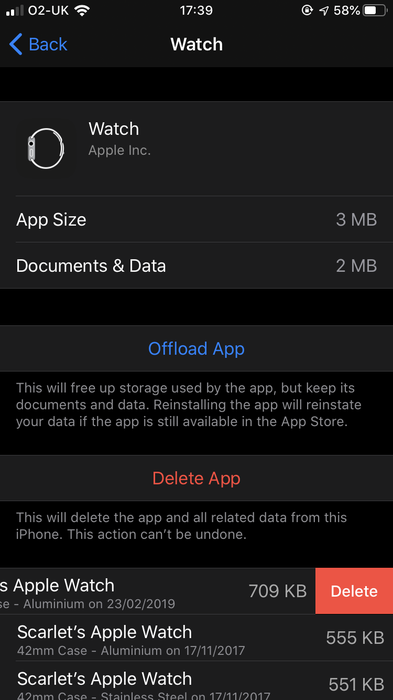
An iPhone showing Apple Watch backups
You can swipe left on any of these backups and hit Delete to remove them.
To access the data within the backup of your Apple Watch, you'll need to run iPhone Backup Extractor on a computer. We'll look at how to do this now.
How do I access and view an Apple Watch backup?
Follow these three steps to access specific data within your Apple Watch backup:
- Install iPhone Backup Extractor
- Locate your Apple Watch backup
- Access and extract your data
Step 1: Download and install iPhone Backup Extractor
You can use the iPhone Backup Extractor to view Apple Watch backups and recover Apple Watch data. If you're already using iPhone Backup Extractor, move on to Step 2, if not, download and install it.
Step 2: Locate your Apple Watch Backup
To locate your Apple Watch backup, select your iPhone's backup by clicking on it in the left-hand side of the application.
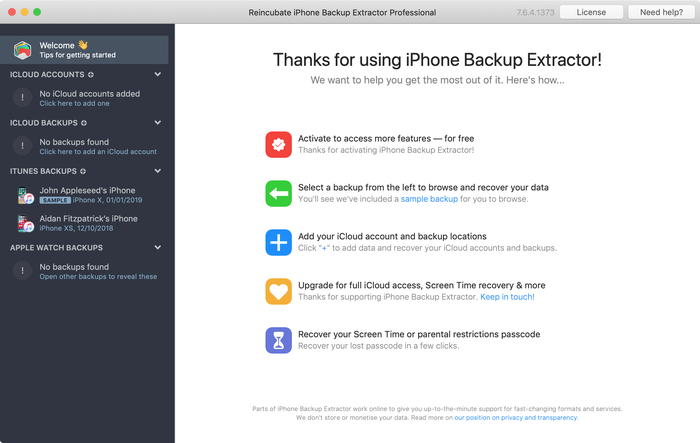
iPhone Backup Extractor's welcome screen, showing two backups on the left
To do this, select the iPhone from the lefthand column of the iPhone Backup Extractor, then enter your iPhone backup password when prompted. You may need to allow a couple of minutes for your watch backup to appear.
Not sure what your iPhone Backup password is? Find out how to recover a lost iPhone backup password.
Step 3: Access and extract your data
iPhone Backup Extractor lets you see what exactly is in your Apple Watch backups. To examine the data, view the backup in Expert Mode. Here, you should see Application Plugins and Home. Expand Home→ Library → DeviceRegistry and its subfolders to view your data.
You can extract specific data to your computer by selecting and clicking Extract at the bottom right of the screen.
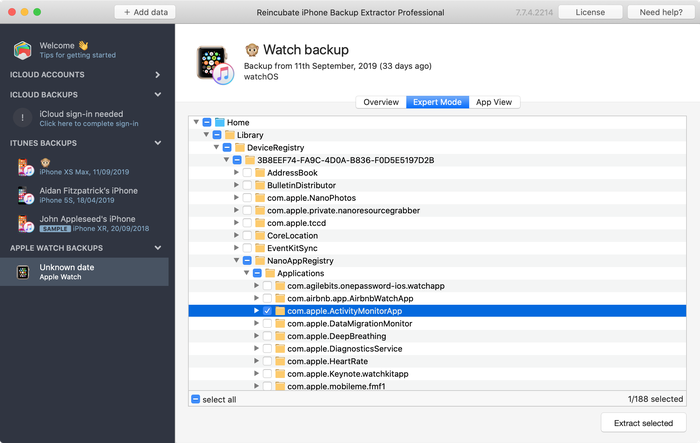
Apple Watch files ready for extraction
What is included in an Apple Watch backup?
Among other things, your Apple Watch backup will include the following:
- Workout and Activity achievements and calibration
- The layout of your apps on the Home screen
- Your customised clock face settings
- System settings
- App settings
- App-specific data for built-in apps
- Health and Fitness data*
*Only included when you backup using iCloud or an encrypted iTunes backup.
Your Apple Watch backup will not include the following:
- Credit and Debit cards added to Apple Pay
- Your Apple Watch Passcode
- Bluetooth pairings
- Purchased media files
- Books