
This guide tells you all you need to know about installing new versions of iOS, upgrading to them, downgrading, and restoring data. Here's what it contains:
- How to safely update iOS on your iPhone or iPad
- How to install an iOS beta
- How to upgrade from iOS beta or gold master to the official release
- How to downgrade an iPhone or iPad from iOS beta
How to safely update iOS on your iPhone or iPad
Once you’ve performed a backup of your data, you’re ready to perform a safe iOS upgrade. The procedure is simple.
You have two options to update your iPhone or iPad to the latest iOS, from iCloud or using iTunes.
If you use iCloud or over the air (OTA) updates, here’s what to do. From the Settings menu go to General then select Software update. You’ll see an option called "Download and install". Click on it to initiate the iOS update procedure. If you have restrictions PIN active on the phone, you’ll be asked to introduce it.
If you decide to use the iTunes method, you should install the latest version of iTunes. Then connect your iPhone or iPad to your computer and select your iOS device. On "Summary", select Check for update then choose Download and update. Wait until the upgrade procedure is finished. Don’t disconnect your iPhone before the iOS update is finished.
Common reasons for failed iOS updates -- and fixes ?⚕️
An iOS upgrade could fail for a lot of reasons. These are the most common ones and the fixes which should be used to make sure the next update will be a successful one:
- A network error. If you use the OTA method, this is the most common reason for a failed iOS update. You will receive a message telling you that "an error occurred downloading iOS". If you tried to restart the iPhone or you disabled and reactivated the Wi-Fi and you can’t make it work you still have a solution: reset your wireless connection. Go to
Settings→General→Resetand chooseReset Network Settings. Check your Wi-Fi connection after resetting. - You need more free space on the iPhone. The default message for this error is: "Insufficient Space For Download". Sometimes, the reason for a failed iOS upgrade is the amount of free space available on the phone. To solve this problem, allow app deletion, or worst case make an iTunes or iCloud backup then delete some files. If you have backups, you can get your files back anytime, after the update.
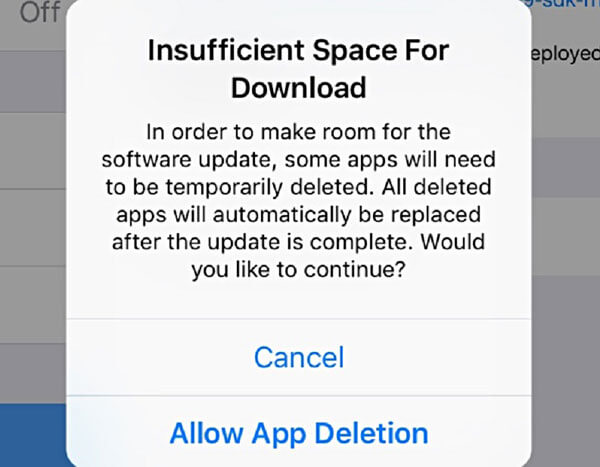
Insufficient space for download when upgrading iOS
- A power failure or a disconnected cable. This is an unpleasant problem, an harder to fix. You have to check if the iPhone is still working or not. The best solution is to connect it to your computer, then initiate an iTunes restore. After the restoration is complete, you can try once again to update your iPhone to iOS.
How to install an iOS beta
How to install iOS 16 beta on your device (also works for iOS 15 - 10 betas)
Through the developer beta
- On your iOS device, navigate to developer.apple.com in Safari
- Click "account" and log with to your Apple developer account credentials
- Select the "downloads" section
- Find the latest iOS beta installation profile, and click to download it
- Your iPhone will bring up a prompt, asking if you'd like to install a configuration profile: choose to do so
- On your iPhone, go to
Settings→General→Software Update, and tapDownload and Install - Wait for the install and reboot -- and you're done!
Through the public beta
- On your iOS device, navigate to beta.apple.com/profile, and tap on "Download Profile" section to enrol your device
- Your iPhone will bring up a prompt, asking if you'd like to install a configuration profile: choose to do so
- On your iPhone, go to
Settings→General→Software Update, and tapDownload and Install - Wait for the install and reboot -- and you're done!
How to install an older iOS beta (iOS 9 or below)
Prior to the changes in iOS 10 that simplified the beta installation process, there were a few additional steps to install betas from older versions of iTunes. Specifically, registration of your device's UDID was required.
To register your UDID and access betas, membership of the Apple Developer Program is required. This has an annual membership cost of $99.
How to register an iPhone's UDID in Member Centre
- With the UDID in your clipboard, log in to Apple's Member Center, click on
Certificates, Identifiers & Profilesand selectDevices - Click the
+symbol to register - Give your iOS device a name and paste your Unique Device Identifier copied from iTunes or Xcode
- Click continue and confirm your entry to complete the registration process
With that done, go back to the Member Center page and navigate through SDK, iOS and iOS {version} beta. Select your device and start downloading.
That'll leave you with a downloaded .dmg or .zip file to extract. These files contain the .IPSW file you need for installation.
How to install an IPSW restore file to your iPhone or iPad
- Before proceeding, turn off “Find my iPhone” in
Settings→iCloud→Find my iPhone - Connect your iOS device to your computer
- Launch iTunes and select your device from the top right corner
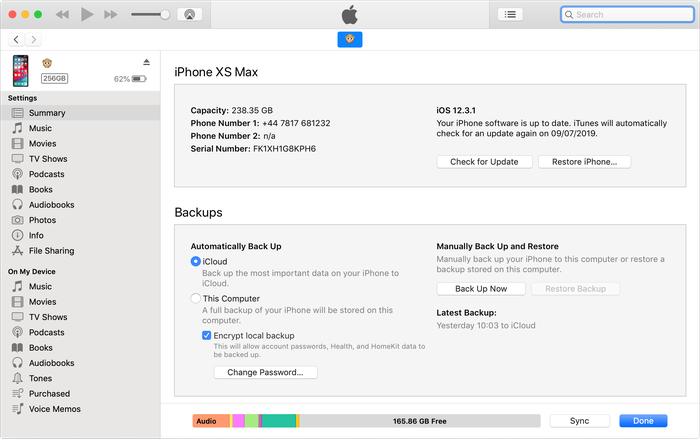
An iOS device connected to iTunes
- If your iOS device asks to trust your computer, agree, and enter the code on your device
- Create an up-to-date iTunes backup to keep your data safe
We'd recommend locally to iTunes, as it's quicker both to backup and restore
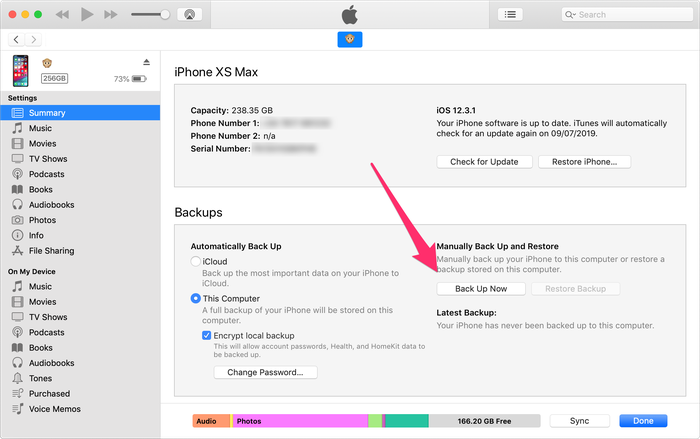
Backing up your iOS device
- From the summary tab, hold down the
⇧ Shiftkey (on Windows) or⌥ Optionkey (on Mac) and click the "Restore" or "Check for Update" buttons - Select the iOS beta
IPSWimage and click open to being the installation
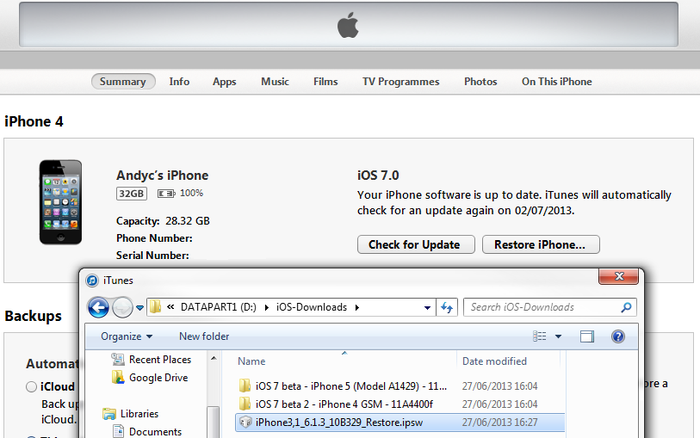
iTunes iOS device restoration
- iTunes will inform you that it will update your iOS device (even if you've selected an older firmware) and will verify this update with Apple; click "Update"
- Your device will reboot after completing the installation; a network connection is required to complete the activation
- "Slide to upgrade" will appear as your device restarts: unlock, enter the password, activate if necessary, and wait for the install process to finish
That’s it! You should now have successfully updated to the beta version of iOS that you selected.
How to upgrade from iOS beta or gold master to the official release
If you're a developer and you're running a gold master release of iOS from the developer beta program, you'll know that often the gold master is binary-identical with the official release. When this is the case, there's no need to update. Sometimes, however, it's not, and there's not an obvious way to get onto the final release.
The answer calls for the classic backup, upgrade and restore. You'll need to download the Gold Master release of iOS, before following the steps we laid out above on installing an IPSW restore file.
How to downgrade an iPhone or iPad from iOS beta
Restoring to an older version of iOS might mean you will not be able to get the data you gathered while using the newer version of iOS on your device. You will not be able to restore an iOS beta iTunes or iCloud backup to an older iOS version. Also -- if you're a cheeky jailbreak user -- your saved blobs will be lost after downgrade.
Restoring your iTunes or iCloud backup data to your iPhone or iPad is possible for most of backed up files, but it's not trivial. Here's our guide on how you can get some of the most important backup data back to your iOS device.
Here's our step-by-step to do it:
- Download the older firmware for your device, make sure you download the appropriate version for your iPhone, iPad or iPod
- Before proceeding, turn off “Find my iPhone” in
Settings→iCloud→Find my iPhone - Connect your iOS device to your computer
- Launch iTunes and select your device from the top right corner
An iOS device connected to iTunes
- Create an up-to-date iTunes backup to keep your data safe
We'd recommend locally to iTunes, as it's quicker both to backup and restore
Backing up your iOS device
- Put your device into DFU mode. To do this, turn off the device, hold the power button for 3 seconds, whilst holding the Home button for 10 seconds. Release the power button and continue holding the home button until iTunes shows the recovery mode confirmation. Click OK.
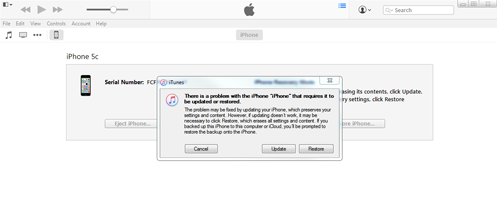
Entering DFU mode: iTunes
- Then click on the "Restore iPhone" button and select "Restore and Update" for the confirmation.
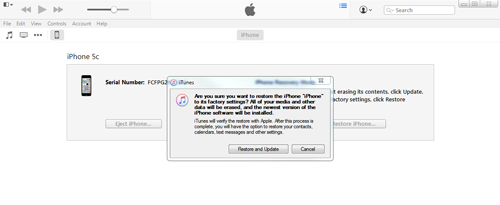
iTunes' restore and update prompt from DFU mode
- iTunes will give you some information about the iOS update and will wait for you to click through "Next" and "Agree" buttons. iOS will be downloaded and installed to your device.
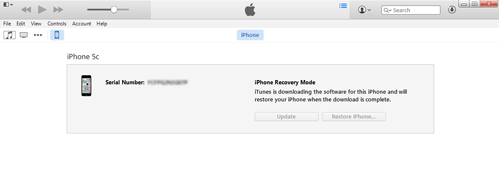
iTunes downloading firmware in recovery mode
- Your device will reboot after completing the installation; a network connection is required to complete the activation
- "Slide to upgrade" will appear as your device restarts: unlock, enter the password, activate if necessary, and wait for the install process to finish
That's it! You’ve successfully downgraded.
If you're in need of help restoring an iOS backup from a newer iOS device to an older version of IOS, we have a guide for that here.
Having problems? Don't be a stranger: reach out or leave a comment below!