
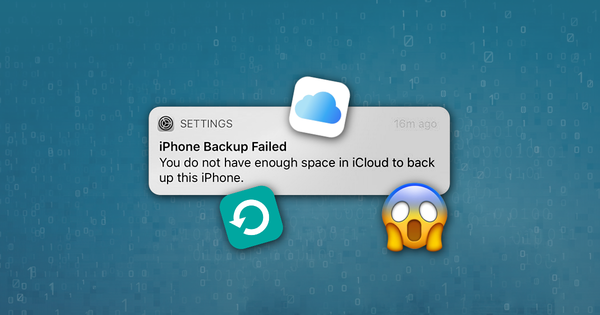
iPhone Backup Failed
You do not have enough space in iCloud to back up this iPhone
Many people wake to the cryptic "iPhone Backup failed" message on their phones. Let's look at how to fix it, and what it means. The short version is that your iPhone is defaulting to take a regular backup of its content to the iCloud. This is really handy in case you ever lose or break your phone; you’ll be able to restore your data to a new device.
Apple does a great job of securing the contents of your phone. In part, that means that if you lose it or break it, it may be very difficult to recover your data. Taking a regular secure backup of your phone's contents makes a lot of sense, and your iPhone can back itself up automatically.
There are two ways for your phone to back up, and whilst you can freely choose and move between either method, you can't use both at the same time.
You've almost certainly logged into your iPhone with your Apple ID, which means that your phone is able to access your iCloud storage. By default, the phone will try to take regular backups there. A phone can make an iCloud backup when the following criteria are satisfied:
- The phone is locked
- It is connected to a power source
- There is a Wi-Fi network in range
There are three approaches we could use:
- Fixing the problem with iCloud backups, so that the phone backs up successfully
- Switch to iTunes backups
- Disable the backup process altogether
Let’s run through these in order.
Fixing iCloud backups
There are only a handful of reasons that an iCloud backup can fail. Typically, it’s because the Apple ID associated with the iPhone doesn’t have enough free iCloud storage space. By default, each user gets 5GB. The easiest solution comes with a small monthly fee to Apple: buying more iCloud storage.
How to increase iCloud storage space
Apple have instructions on how to buy more iCloud storage space, but the process is straightforward:
- Go to
Settings→[your name]→iCloud→Manage StorageoriCloud Storage. If you're using iOS 10.2 or earlier, go toSettings→iCloud→Storage. - Tap “Buy More Storage” or “Change Storage Plan”.
- Choose a plan.
- Tap “Buy” and follow the onscreen instructions.
Buying more space comes with an additional benefit: if you create a “Family Sharing” group for your Apple devices, other members of your family (not just children) are able to use any free space you have, without compromising the privacy of their data.
If you don’t want to buy more space, that’s fine: we can free up space in your iCloud storage, either by backing up less of your data, or by removing data that is already taking up storage space.
How to free up iCloud storage space
There tend to be five types of data that take up iCloud storage space:
- iOS apps which store data directly in the iCloud
- iPhone backups
- Files from documents and the desktop (but only if you have macOS computers with “Store in iCloud” enabled)
- Data from Apple services (iCloud Photo Library, Photo Stream, Messages in iCloud, etc.)
- Family sharing data (ie. other family members who have been granted permission to use your storage pool)
Why doesn't my iCloud storage space add up?
There are a few factors at play that make it tricky to understand how much iCloud space is being used by iCloud backups, and why.
Firstly, iCloud usage shown in the iCloud Storage section of Settings on an iOS device doesn't show iCloud backup usage. Instead, it's showing how much iCloud storage the device's apps are using at runtime. That's not the same as how much storage each app is taking up on the phone.
In fact, the more an app is able to store in iCloud at runtime, the less it needs in the backup. As an example: if you have 100GB of photos and store them in iCloud Photo Library, they won't be stored in your iCloud backup. (As that'd be redundant.)
Second, whilst it's more helpful to look at the backup Storage pane under Settings, that's not the whole picture. It only shows app-specific data which can be toggled on or off. It doesn't show system data. What's in system data? Well, lots of stuff: Messages and attachments, Watch backups, your settings, all sorts of databases and configuration files that grow over time. There's all sorts of stuff that can creep in that's big. Your large wallpaper image? That big unsent message in your drafts?
There's a third factor: iCloud backups are stored as snapshots. Your device will (usually) store 3 at a time, each stored as a delta from the last. That can consume extra space. eg. If today is Friday and a backup ran in the morning, your iCloud backup will have:
- Everything from Weds
- Everything new from Thurs
- Everything new from Fri
That delta is likely quite small, but it does inflate the size a little.
It's fairly easy for a Messages database to bloat up to 1GB, for instance. If you really wanted to dig through and find where space is going, you could always just download your iCloud backup with iPhone Backup Extractor and parse through the files. What you'd find from doing that is that the numbers add up.
To get more practical, it is hard to reduce this number. It is possible to prevent individual apps from backing up. But that might not be helpful, and it won't cut down on system storage. The only way to really effectively do that is to blast the phone and start again, but if you're syncing stuff across iCloud (like your keychain, Messages in iCloud, etc.) it could potentially get build back up to using a decent amount of space quite quickly. Upgrading iCloud storage is almost always the most practical answer, and it is relatively inexpensive.
Remove apps and files through manage storage
To make space from iOS apps, go to Settings → [your name] → iCloud → Manage Storage or iCloud Storage. If you're using iOS 10.2 or earlier, go to Settings → iCloud → Storage.
That’ll show each app that’s taking up iCloud storage space. Apps with individual files will show them in a list under the app’s storage, and you can swipe left on any file to reveal a “Delete” option. “Delete Documents & Data” will remove all of that app’s data. Beware: a number of apps only store their files this way, so by removing the files from your iCloud storage you may be removing your only copy of them.
Remove apps from iCloud backups
To make space from iOS apps, go to Settings → [your name] → iCloud → Manage Storage → Backups → [your device]. Under "Choose data to back up", you can select which app's data is allowed into iCloud backups.
Remove large files with Apple’s “Files” app
You can remove large synchronised files from your iCloud storage space using Apple’s free “Files” app.
Download and archive older iCloud device backups
It may be that your iCloud storage space includes backups of older iOS devices. If you no longer need the data in these backups, they can be deleted. Alternately, if you do need the data but would rather store the backups on your Mac or PC, you could use iPhone Backup Extractor to download the iCloud backups locally before removing them from the iCloud.
Shrink your iCloud Photo Library or Photo Stream
If you take or share plenty of photos and videos on your iPhone and have iCloud Photo Library enabled, you’ll probably be using quite a bit of iCloud storage space. The menus on the iPhone we’ve described above will show you how much space each type of data is taking. MacPaw’s Gemini Photo includes a 3-day free trial and can automate the process of removing old or duplicate photos from your library.
Enable iTunes backups (automatically -- over Wi-Fi!)
Instead of having your phone back up nightly to the iCloud, you can configure it to back up to your Mac or PC instead. It’ll do this automatically, assuming you plug it in at home and have Wi-Fi and your computer powered on.
Our support centre includes a guide on how to enable iTunes backups over Wi-Fi. It doesn’t require any storage space at all, and once you’ve completed a local backup to your computer, you can delete any older iCloud backups from your storage.
Disable iCloud backups and back up your iPhone manually
We don’t recommend disabling automatic backups, but the process to do so is straightforward
- Go to
Settings→[your name]→iCloud→iCloud Backup. - Toggle “iCloud Backup” to “Off”.
We strongly recommend that you either leave this function enabled, or regularly back up your device to a Mac or PC with iTunes. You needn’t plug your phone in to do this: it can be backed up to a computer using Wi-Fi (see the section above).
Coda
This is a surprisingly common problem.
I am:
⚪️ Single
⚪️ Taken
? iPhone Backup Failed
How different iCloud services use your storage
iCloud is made of many different services, each of which can store data in different places. They're each configured separately, and have different implications for the amount of storage space you can use. We've prepared a table below to give you more insight into Apple's programs and storage plans.
| iCloud backups | iCloud Drive | iCloud Photo Library | iCloud Music Library (w/ Apple Music) | |
|---|---|---|---|---|
| What for | Automatically create secure backups of your device in the cloud | Save your personal files in the cloud, similar to Amazon Cloud, Google Drive or Dropbox | Save your pictures and videos, accessible on all your iOS and macOs devices. | Access to your music across devices |
| Useful for | Recovering your data if lost or deleted, switching phones | Saving and protecting your day to day files | Collecting and viewing all your photos | All your music, anywhere, anytime |
| Where (iOS) | Settings → iCloud → Backup → On | Settings → iCloud → iCloud Drive → On | Settings → Photos & Camera → iCloud Photo Library → On | Settings → Music → iCloud Music Library → On |
| Where (macOS) | In iTunes > Connect your device → Backups → iCloud | System Preferences → iCloud → iCloud Drive | Photos → Preferences → iCloud → iCloud Photo Library | In iTunes → Preferences → General → iCloud Music Library → On |
| Pros & cons | Data not included in your iCloud backup:
| Access these files devices by turning on "Show on Home Screen". If you're using Mac, access by using Finder or icloud.com. If you're using a PC, access with an iCloud Drive or on icloud.com | Use the images with Optimise for iPhone Storage to save space on iOS. This way images will not be stored at full resolution and you can always download them at full resolution if you want to. | Add / favourite / deleted song or playlist will reflect changes across all devices. |
| Storage | Uses iCloud storage space | Uses iCloud storage space | Uses iCloud storage space | No space needed with Apple Music |
| Space | Shared 5GB of free space usually not enough for a single device | Shared 5GB adequate for small collections of files | Shared 5GB covers a year or so of photos if no other data is put in iCloud | Unlimited as long as you pay for a subscription to Apple Music
|
The table above explains how each of Apple's cloud services uses your iCloud storage allowance.
You've never even considered buying more iCloud storage because you assumed you wouldn't be able to afford it? Take a look. You might be surprised to see that 50GB of iCloud space is only $0.99 a month. Apple's iCloud storage plans are currently as follows:
- 50GB -- $0.99 / month
- 200GB -- $2.99 / month
- 2TB -- $9.99 / month
To purchase from your iOS device, navigate to Settings → [your name] → iCloud → Storage → Buy more Storage. To purchase from your Mac, navigate to System Preferences → iCloud → Manage → Buy more Storage. Apple provide further instructions on upgrading your iCloud storage.