

Copying saved games, settings and state from one iOS device to another
iPhone Backup Extractor can extract save, score, or settings files from the iOS apps, and use those files to transfer the information from one iPhone to another, or from an iPhone to iPad.
Below we have listed a few of our favourite apps to illustrate the process in general.
How extract Angry birds data from an iPhone backup
Transferring data works well with the ever-popular Angry Birds. As there are many versions of Angry Birds we have taken the original as an example. These instructions are adaptable to any version -- if not most applications -- so don't worry if this is not your version, you'll work it out.
It's pretty simple really: all you need to do is find the Angry Birds' high-score.lua and settings.lua files. To do this in iPhone Backup Extractor do the following.
- Click to choose "Expert" mode
- Navigate to
Application→com.clickgamer.AngryBirds→Documents
In this folder you will find the prized highscore.lua and settings.lua files. You will need both these "Golden Eggs" to transfer your scores back to your iPhone via Applications → com.clickgamer.AngryBirds → Documents. You can use this to share high-scores and settings between your iPhone and iPad, so there's no need to start from the beginning ever again.
How to move Angry Birds Space hi-scores between devices
If you're interested in inter-planet, zero-gravity hi-jinx then Angry Birds Space from Rovio may be for you. It's available in the App Store for iPhone and iPad users.
Reincubate iPhone Backup Extractor can easily recover your Angry Birds hi-scores so you can move them between devices where needed. Switch to "Expert mode", and look under Application → com.rovio.AngryBirdsSpace → Documents for the high-score.lua and settings.lua files.
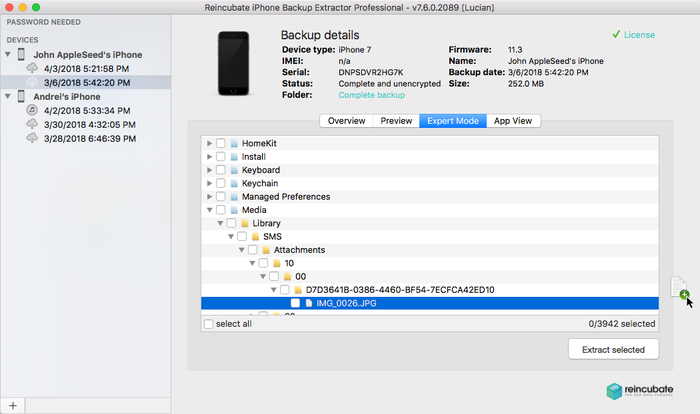
Finding the files in Expert mode
After following these steps, you can extract the highscore.lua and settings.lua files needed for scores, settings and level information. Both files are important when transferring your hi-scores and accomplishments between iOS devices.
Once extracted, they can be moved to another device by installing the app, backing up the device, and then editing the device's backup to overwrite these files.
How extract Nike+ GPS user data from an iPhone backup
If you're an avid runner you'll no doubt have Nike's great Nike Run+ app. The application works in conjunction with a Nike+ sensor to map runs and store your running statistics, so you can compete against yourself or track your training progress. It can take a bit of time to calibrate the app and sensor to your own personal running style, by once done it's worth it.
To access the files from your iTunes backup, open iPhone Backup Extractor and click on "Expert mode", then follow the instructions below:
- Navigate to the
Applications→com.nike.nikeplus-gpsfolder - Check the box next to the folder, this will select all the files needed
- Select "Extract selected" then click extract
- You will then be present with a choice of where you want to save the files
- In the folder you chose there'll be a
Documents→Library→com.nike.nikeplus-gpsfolder structure with your files
There are several ways to get these files back on to iPhones or iPads: we recommend using iPhone Backup Extractor to edit a backup of your other device, then restoring it. If you have a jailbroken iOS device it's possible just to copy the files back, but we don't recommend jailbreaking.
How to restore messages and other data to your iPhone
Let's suppose you've lost some of the information from your iPhone and you want to get it back. Not as an export, but actually back on the phone in the same form as it was before.
If you want to restore contacts, photos, notes, and so on, there's a simpler approach for those data types: you can extract them with iPhone Backup Extractor before importing them to your computer and syncing them back. As in these handy guides:
- How to recover lost iPhone notes
- How to recover lost iPhone photos
- How to recover contacts from an iPhone backup
- How to recover VCard contacts into Gmail
- How to import contacts from CSV into Outlook
Similarly, if you just want to restore all of the files from an older backup, you should just restore the backup. That's much simpler than this approach, which is for restoring or adding only specific files. Otherwise, if it's just messages or other data you want, read on.
In summary, you get iTunes to take a new backup of your phone as it is now, patch the new backup with files you want to restore, and then restore the new backup onto the phone. This method works for both encrypted and unencrypted iTunes backups. You'll be able to restore your messages, WhatsApp chats, notes, call history and other data by following this procedure. Of course, you'll need an older backup that contains the data you want to restore.
- Before you start, make sure you backup your iPhone with iTunes or Finder, and create a safe copy of the backup containing all your current data.
We've got an in-depth guide on creating backups, but in summary, connect your iPhone or iPad to your PC or Mac over USB, and hit "Backup" in iTunes or Finder.
!!! info "Back up your backup! Yes..." Beware that iTunes tends to overwrite backups, keeping only one per device at a time. You can copy out your backup somewhere safe to ensure that iTunes doesn't overwrite it. We've got a guide on how to find your iTunes backups, although iPhone Backup Extractor can tell you this automatically. - Take a copy of your backup. We're going to modify it, so let's ensure we've kept a copy of the original before making these changes. Assuming you've completed the step above and created a safe copy of your new device backup, we can continue.
- Patch your iPhone backup and restore your iOS data. We want to locate the databases holding data in your recently created backup, and replace them with the databases from your older backup. Each app's data is stored in a different place. Depending on the data you need to restore, you’ll find this article helpful in finding the right data. We'll use SMS and iMessage in the examples below, and assume, you've extracted the
sms.dbfile from an older backup.
!!! info "iOS compatibility when modifying backups" You can import messages from iOS 8, 9 and 10 to iOS 11, but for older iOS versions it's more complicated. Our support team can help.You can also use password protected iTunes backups (as long as you know the backup’s password) and -- even import messages coming from an iCloud backup! ⛅️ - Open iPhone Backup Extractor select the backup that you patch with your messages or file to in the left-hand iPhone backup browser.
- Go to the "Expert mode" tab and browse to
Home Domain→Library→SMS→sms.db. Right-click onsms.dband choose "Replace". Choose the SMS database you extracted earlier.
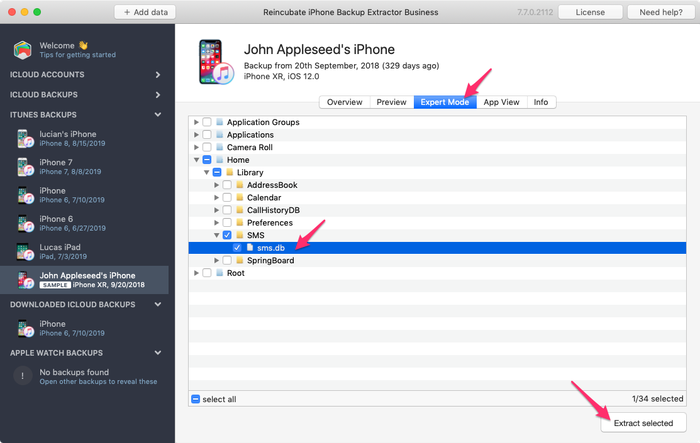
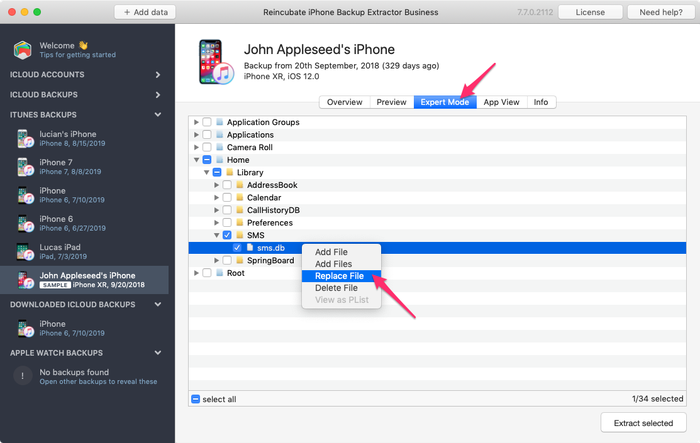
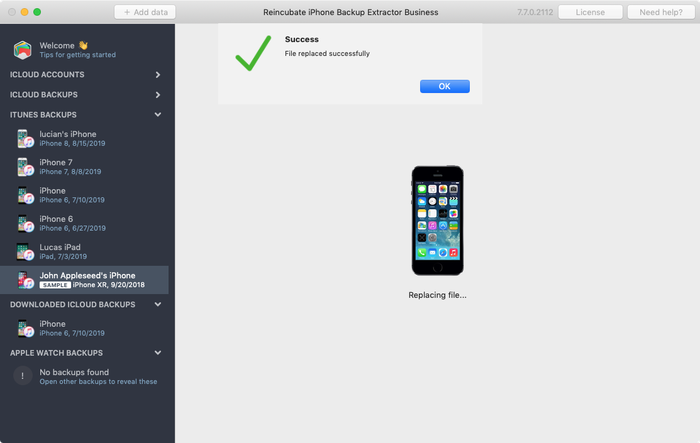
From left to right: replacing SMS.db in a backup.
- Restore the modified backup to your device. Connect your iPhone with the USB cable and open iTunes. Ensure you have the modified backup in the default iTunes location so that iTunes picks the backup automatically. Restore the newly modified backup (where you just replaced the
sms.dbfile): click on "Restore from backup", and choose to restore the most recent backup. Once completed, your SMS messages from the first backup will be restored on your iPhone.
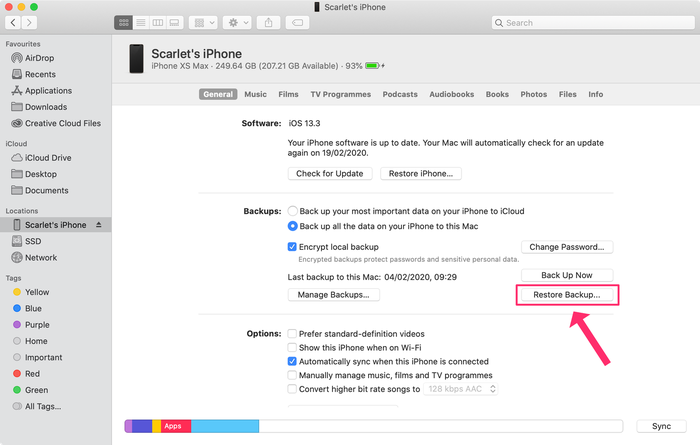
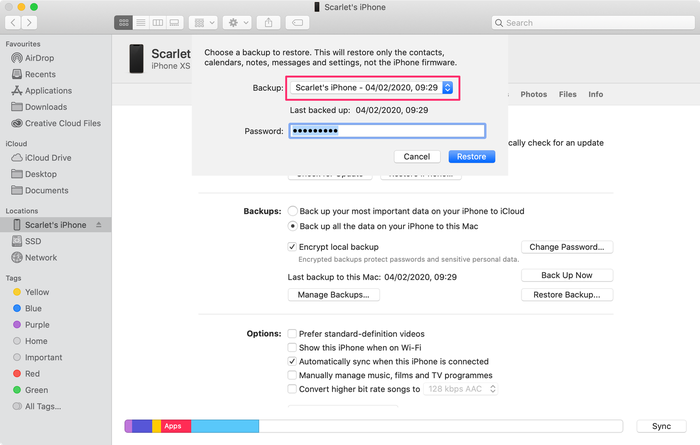
From left to right: restoring a backup with iTunes.
How to restore WhatsApp messages to your iPhone
The process is almost identical to the one used to import iMessages. However, instead of finding the sms.db file, you're going to look for another: ChatStorage.sqlite. You'll find it in "Expert mode" under Application Groups → net.whatsapp.WhatsApp.shared → ChatStorage.sqlite, and you should replace it there in the target backup that you're modifying.
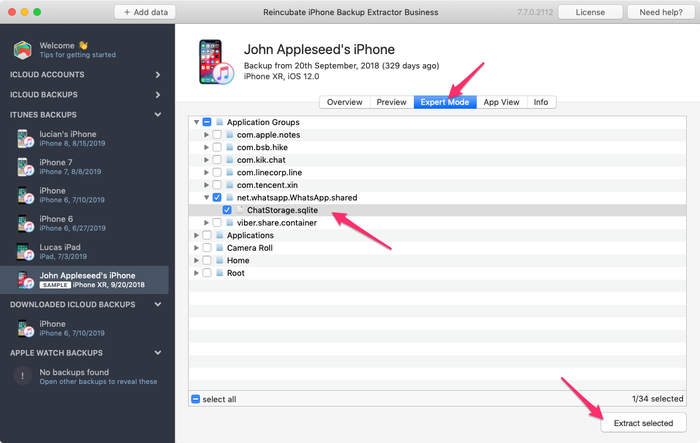
Finding WhatsApp's ChatStorage.sqlite database for migration
If you run into any problems along the way, we'll happily assist you in restoring your iOS data. Drop us a note or say hi on the live chat.