
If your iPhone is stolen or broken, or if you've lost your data, there's a neat way to extract and recover your Viber messages.
Many users find Viber is one of the best apps for messaging, video calls or group chats. Viber has more than 600 million users: if you’re one of them and you accidently deleted or lost your Viber messages, read on and follow these simple steps to extract Viber messages from your backup files.
How to extract deleted or lost Viber messages from an iPhone backup
Here’s a guide to retrieve Viber messages from your iPhone backup with iPhone Backup Extractor:
- Step 1. Install iPhone Backup Extractor
- Step 2. Point iPhone Backup Extractor at your iTunes backup or iCloud account
- Step 3. View and extract Viber messages
You'll need:
- An iCloud or iTunes backup to recover from
- iPhone Backup Extractor for macOS or Windows
Retrieve Viber messages from an iPhone backup
Before you begin, make sure that you have an iCloud or iTunes backup saved prior to the moment you lost or deleted your Viber messages.
Step 1. Download and install iPhone Backup Extractor
You can download iPhone Backup Extractor here, and it runs on macOS as well as Windows. The app always supports the latest version of iOS.
Step 2. Select the backup or iCloud account from which you’ll recover your Viber chat history
You can select either an iCloud or iTunes backup:
For iCloud: Click on the the + button or on "Click here to add an iCloud backup". You'll need to enter your iCloud login details.
For iTunes: iPhone Backup Extractor will automatically read all backups located in the default folder. If your backups are saved in a different location, you’ll need to add the folder by clicking on the + button, or on "Click here to add an iTunes backup". You'll need to provide your backup password in order to read encrypted backups.
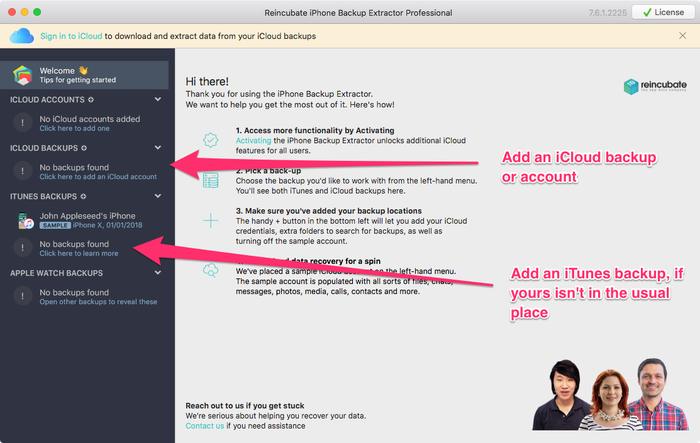
Adding iTunes and iCloud backups
Step 3. View and extract Viber messages
Depending on what you’d like to extract from your backup, you have 3 options:
If you want to preview the Viber conversations list from the backup, in the right window choose “Preview”. In case you’d like to recover just a few messages, you can check them and click “Extract”.
You will need to choose between CSV and HTML file types (CSV will save them all in one text file, while HTML will save them in separate files where you can see the images). Choose a location to save the files, click “OK” when the “Extraction successful” message appears -- and that’s it!
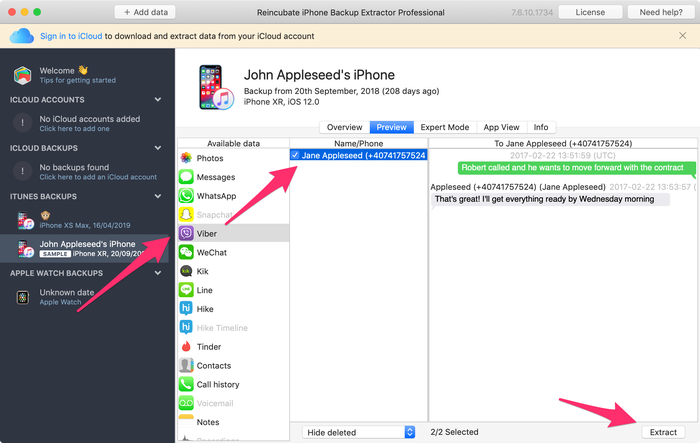
Previewing Viber messages from iCloud
If you’d like to extract complete Viber files, in the right window, go to App View → Viber → All messages. Choose the location where you want to save the data and after the “Extraction successful” appears, click “OK”.
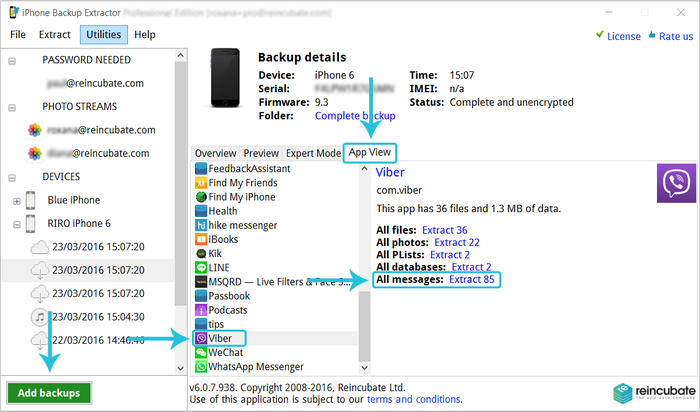
Recovering all Viber messages from a backup
If you already have the Viber chat archive extracted, and you’d like to convert it to an HTML or CSV file, go to “File” and you’ll two options: "Convert Viber DB to HTML" or to CSV. Choose the Viber database that you wish to convert and click “Open”, select the location where you’d like to save the new file and click “OK”.
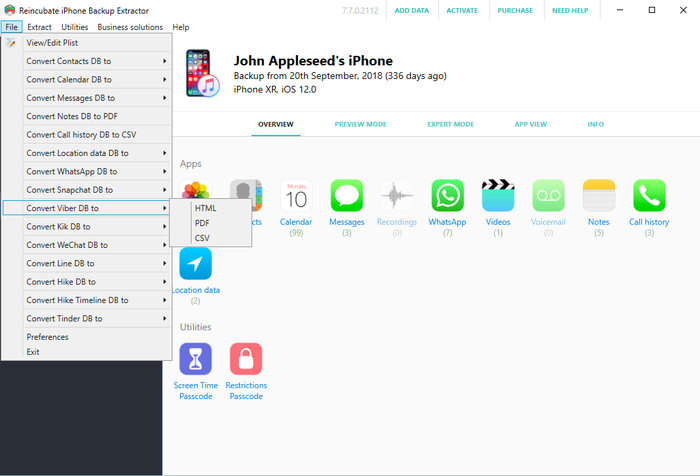
Converting the Viber SQLite database
If you have any questions or need help, we’ll gladly assist you, just reach out to our support team using live chat on this site or by email. How did this tutorial work for you? We’d love to hear your story!
How to extract Viber contacts from an iPhone backup
Are you searching for a way to extract your Viber contacts from an iPhone? We have good news for you: you’re in the right place! In just a few minutes you will learn how to recover your Viber contacts from the iPhone backup.
There are two steps to achieve this:
- Identify and then extract the database where the contacts are stored
- Convert the database content to a readable format
Step 1: Identify and extract the database from the backup
In order to start the recovery of Viber contacts from an Apple device, follow the next steps:
- Download iPhone Backup Extractor and install it on your computer. You’ll have to choose between Mac and Windows, depending on your operating system.
- Once you have your iTunes or iCloud backup in iPhone Backup Extractor, before clicking on "Expert Mode". Go to
Application Domain→com.viber→Documents→Contacts.data, click on “Extract” and choose the folder where you want to extract the database.
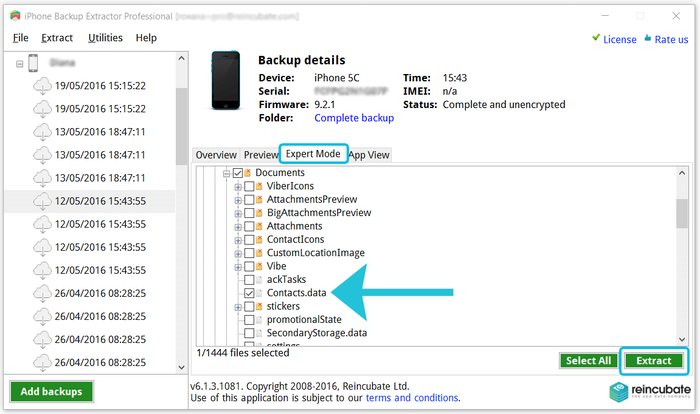
Extracting Viber contacts & call history
Viber contacts are stored in the Contacts.data file.
That’s it! Now you have the database of the Viber contacts extracted on your computer. Let’s go to the next step.
Step 2: Convert the extracted database content in a readable format
To get the data from the Contacts.data database you need a tool able to read the content of this SQLite file. We've got a document here on how to pick the right SQLite tool Our instructions below assume you're using "SQLite Manager".
To extract the Viber contacts, do this:
- Open SQLite Manager and click on
Database→Connect databasefrom the top menu and go to the folder where theContacts.datafile is stored.
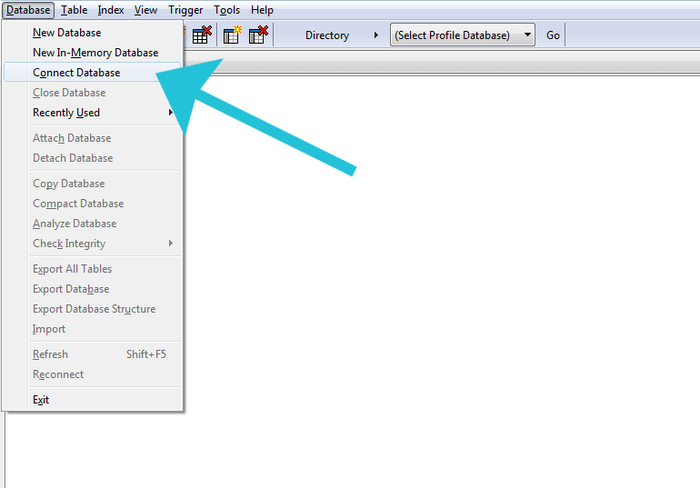
Open the Viber contacts database
- Change the file extension from
.sqliteto "All files" in SQLite Manager then select theContacts.datafile.
::blog-figure{src="/i/ssm/sqlite-manager-open-database-file-dialog.png" alt="Select "All files" in the open dialog"} Select "All files" in the open dialog ::
- Once the database opened, click on
ZABCONTACTthen select the "Browse & Search" tab. You’ll see the Viber contacts in the database. The contacts are available in two separate columns:ZMAINNAMEandZSUFFIXNAME(name and surname).
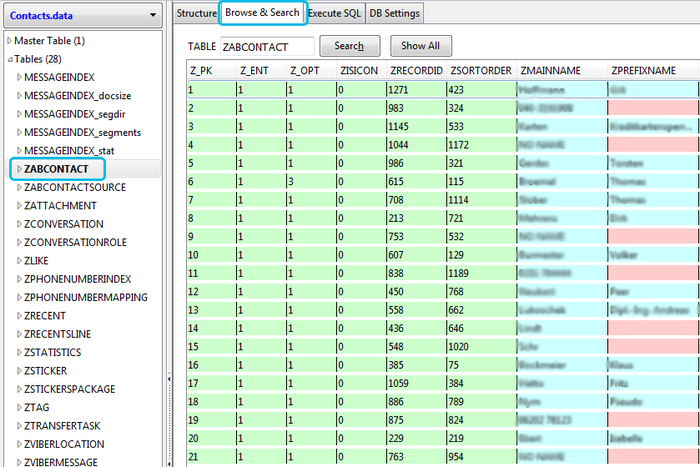
Viewing the Viber contacts database
- You have two options now:
- Select all the rows, then click right and choose "Copy row(s) as CSV (MSExcel compatible)". Create a separate Excel file, open it, then paste the copied data in the spreadsheet.
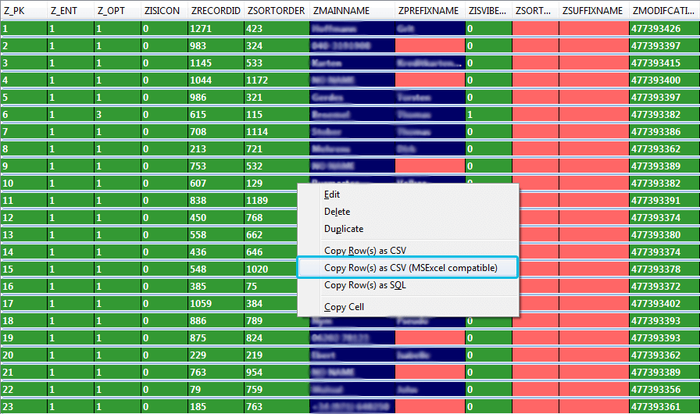
Copy Viber contacts
* Another option is to export the table to a `.CSV` file. To do this, click on `Table` → `Export` table from SQLite Manager's top menu. Then choose the format of the file and confirm the action. You’ll be asked where you want to save the data. Once you confirm the destination folder, the `.CSV` file will be generated and saved on your computer.
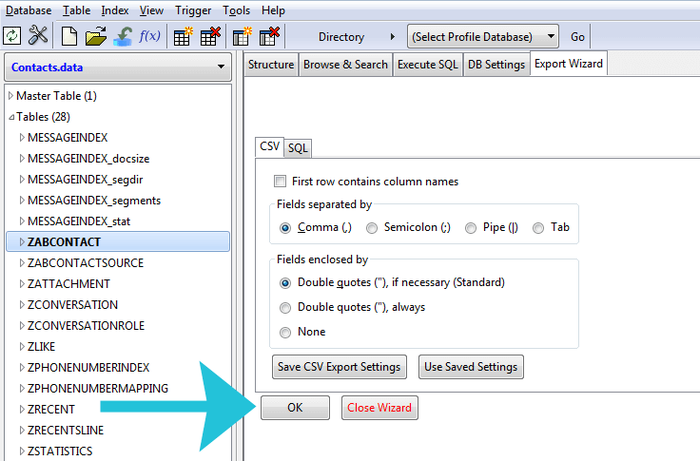
Copying Viber contacts before pasting into Excel
That's it! Now you have all the Viber contacts extracted from your iPhone.
The number of Viber users has considerably increased and at the moment there are more than 754 million registered users worldwide. If you’re one of them, we hope this guide helped you to recover the Viber contacts from your device.
In case you need additional info on this topic, don’t hesitate to contact our support team.