Getting Camo Streamlight
To get Camo Streamlight, go to the Microsoft store and search “Camo Streamlight.” When launching the app for the first time, you’ll see a welcome screen featuring a link to our Privacy Statement and the option to Accept or Manage the data we use to improve the app. You can then choose whether to sign up for the Camo Community and learn more about mastering video with Camo.
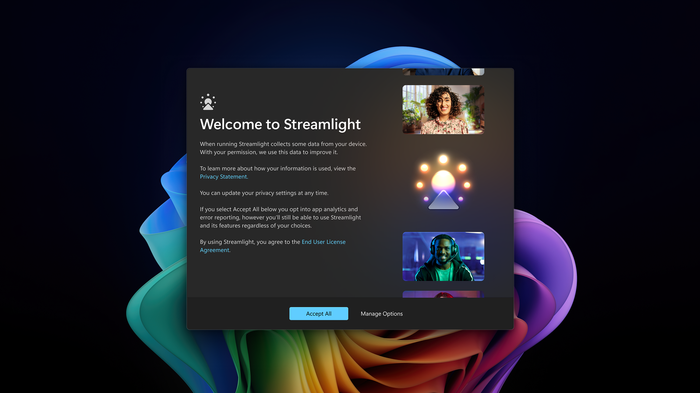
Streamlight's welcome screen
The Streamlight interface
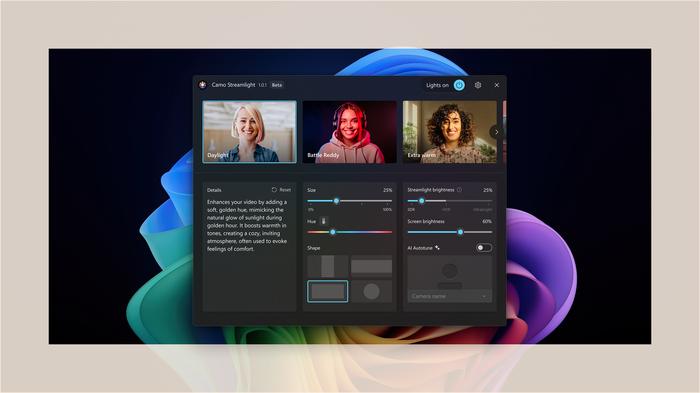
Streamlight gives you 8 presets and 6 tools for customising your light (AI Autotuning coming soon)
Welcome to Streamlight! Most of the tools you need to perfect your lighting are viewable in the simple interface. Across the top you’ll see your light switch and a Settings icon. Below those are the main controls:
Presets
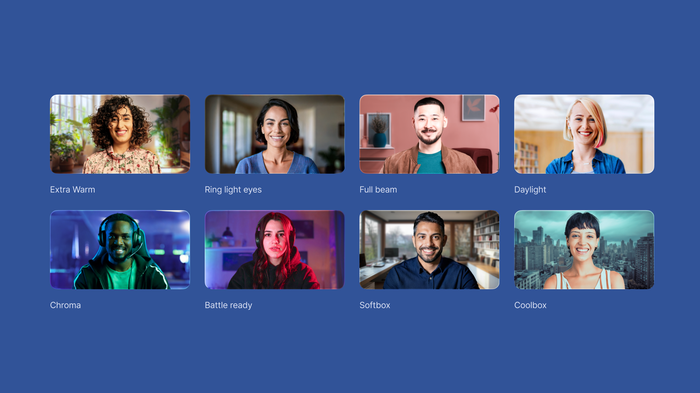
Streamlight's eight presets
The interface contains a carousel of eight preset thumbnails, each designed to be easily identifiable at a glance and get you started quickly with an instant look. When one is selected, the light will automatically turn on, and its description will appear on the lower left.
Tools
Any of the presets can be adjusted further using the tools found in the lower center and right part of the interface. These include:
- Size: adjusts the amount of screen space your light takes up, from 0% to 100%.
- Temperature/Hue: adjusts the colour of your light along a spectrum of red to blue.
- Shape: adjusts the shape of your light, from horizontal or vertical bars to a rectangular or circular frame.
- Streamlight brightness: adjusts the power of your light, from SDR to HDR and Ultrabright for screens with those capabilities. SDR ranges from very transparent to the regular brightness of your screen, while HDR covers what your screen can do in the HDR range while retaining colour accuracy. Ultrabright is a single point at the end that reduces the palette of available colours in order to get maximum brightness from the screen.
- Backlight strength: Adjusts the screen’s own backlight for an additional lighting boost.
- AI Autotune (coming soon)
Settings
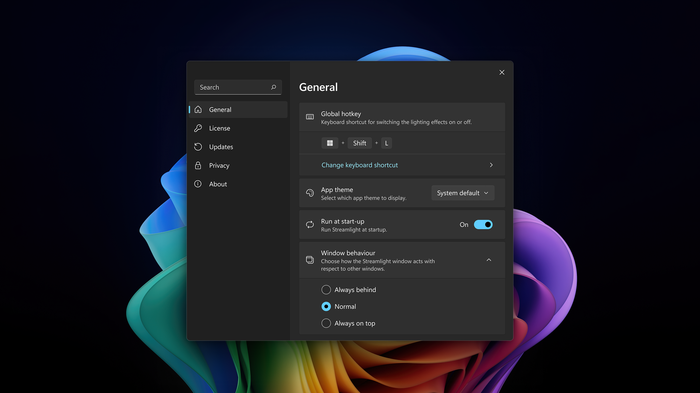
Streamlight's Settings window
A number of settings can be accessed via the icon in the upper right. Click on it to:
- Specify your light behaviour (the way Streamlight acts in respect to other windows, i.e., whether it’s always on top or below other apps).
- See what’s new
- Ask for help or look for advice
- Give feedback on your experience
- Set a global hotkey for switching the light on or off
- Choose an app theme and whether you’d like the app to run at start-up