
This article will help you find files belonging to a particular app inside an iPhone backup. It'll also help you build a better understanding of how files and folders are arranged on iOS.
The simplest approach for recovering files from an iOS backup is to use iPhone Backup Extractor: the free edition will help you find and extract the files you need, as it can do so without you needing to know the detail in this article. If you’d like to do that, you’ll find we’ve got a number of handy guides shown in the top menu of this site, which will guide you through that process.
Understanding hashed file names in iOS backups
When an iTunes or an iCloud backup is performed for your iPhone, iPad or iPod Touch, important data is saved into various files within the backup folder.
The filenames are encoded so they appear as strings of letters and numbers if you access the backup folder, using what is known as a hex-encoded SHA-1 hash. In many versions of the iPhone operating system the same names are used.
Here are some of the core SQLite database files found in the iTunes backup folder. The file names are the same for both iTunes and iCloud backups.
iOS 16, 15 and 14 iPhone backup file locations
| Contents | Real filename | Backup filename |
|---|---|---|
| SMS | sms.db | 3d0d7e5fb2ce288813306e4d4636395e047a3d28 |
| Contacts | AddressBook.sqlitedb | 31bb7ba8914766d4ba40d6dfb6113c8b614be442 |
| Calendar | Calendar.sqlitedb | 2041457d5fe04d39d0ab481178355df6781e6858 |
| Reminders | Calendar.sqlitedb | 2041457d5fe04d39d0ab481178355df6781e6858 |
| Notes | notes.sqlite | ca3bc056d4da0bbf88b5fb3be254f3b7147e639c |
| Notes | NoteStore.sqlite | 4f98687d8ab0d6d1a371110e6b7300f6e465bef2 |
| Call history | call_history.db | 2b2b0084a1bc3a5ac8c27afdf14afb42c61a19ca |
| Call history | CallHistory.storedata | 5a4935c78a5255723f707230a451d79c540d2741 |
| Locations | consolidated.db | 4096c9ec676f2847dc283405900e284a7c815836 |
| Web history | History.db | 1a0e7afc19d307da602ccdcece51af33afe92c53 |
| Voicemail | voicemail.db | 992df473bbb9e132f4b3b6e4d33f72171e97bc7a |
| Photos | Photos.sqlite | 12b144c0bd44f2b3dffd9186d3f9c05b917cee25 |
| Wallpaper (home screen) | HomeBackground.cpbitmap | b97b0c3bc8a6bb221d0849b450fbd92b5d06a301 |
| Wallpaper (lock screen) | LockBackground.cpbitmap | 86736007d0166a18c646c567279b75093fc066fe |
iOS 13, 12 and 11 iPhone backup file locations
| Contents | Real filename | Backup filename |
|---|---|---|
| SMS | sms.db | 3d0d7e5fb2ce288813306e4d4636395e047a3d28 |
| Contacts | AddressBook.sqlitedb | 31bb7ba8914766d4ba40d6dfb6113c8b614be442 |
| Calendar | Calendar.sqlitedb | 2041457d5fe04d39d0ab481178355df6781e6858 |
| Reminders | Calendar.sqlitedb | 2041457d5fe04d39d0ab481178355df6781e6858 |
| Notes | notes.sqlite | ca3bc056d4da0bbf88b5fb3be254f3b7147e639c |
| Notes | NoteStore.sqlite | 4f98687d8ab0d6d1a371110e6b7300f6e465bef2 |
| Call history | call_history.db | 2b2b0084a1bc3a5ac8c27afdf14afb42c61a19ca |
| Call history | CallHistory.storedata | 5a4935c78a5255723f707230a451d79c540d2741 |
| Locations | consolidated.db | 4096c9ec676f2847dc283405900e284a7c815836 |
| Web history | History.db | e74113c185fd8297e140cfcf9c99436c5cc06b57 |
| Voicemail | voicemail.db | 992df473bbb9e132f4b3b6e4d33f72171e97bc7a |
| Photos | Photos.sqlite | 12b144c0bd44f2b3dffd9186d3f9c05b917cee25 |
| Wallpaper (home screen) | HomeBackground.cpbitmap | b97b0c3bc8a6bb221d0849b450fbd92b5d06a301 |
| Wallpaper (lock screen) | LockBackground.cpbitmap | 86736007d0166a18c646c567279b75093fc066fe |
iOS 10, 9, 8 and 7 iPhone backup file locations
| Contents | Real filename | Backup filename |
|---|---|---|
| SMS | sms.db | 3d0d7e5fb2ce288813306e4d4636395e047a3d28 |
| Contacts | AddressBook.sqlitedb | 31bb7ba8914766d4ba40d6dfb6113c8b614be442 |
| Calendar | Calendar.sqlitedb | 2041457d5fe04d39d0ab481178355df6781e6858 |
| Reminders | Calendar.sqlitedb | 2041457d5fe04d39d0ab481178355df6781e6858 |
| Notes | notes.sqlite | ca3bc056d4da0bbf88b5fb3be254f3b7147e639c |
| Call history | call_history.db | 2b2b0084a1bc3a5ac8c27afdf14afb42c61a19ca |
| Call history | CallHistory.storedata | 5a4935c78a5255723f707230a451d79c540d2741 |
| Locations | consolidated.db | 4096c9ec676f2847dc283405900e284a7c815836 |
| Photos | Line.sqlite | 2d711a1f5613f5259730b98328a3f7e816698f88 |
The paths to the WhatsApp, Snapchat, Kik, Viber and WeChat databases are mentioned in the table below. These filenames are available for iOS 8 and 9 but have different names for the older versions of iOS.
| Chat app | Stored to | Backup filename |
|---|---|---|
App Domain/net.whatsapp.WhatsApp/, Documents/ChatStorage.sqlite | 1b6b187a1b60b9ae8b720c79e2c67f472bab09c0, 275ee4a160b7a7d60825a46b0d3ff0dcdb2fbc9d, 7c7fba66680ef796b916b067077cc246adacf01d | |
| Snapchat | App Domains/com.toyopagroup.picaboo/, Documents/chats.plist (private messages) or stories.plist (public snaps) | 1cd3cd2b412f7b045dd479b617cb2a4f99ffdfee, 7cdb9af6c5352b97cc0f87369df43c49a45c99f3 |
| Kik | App Domain/group.com.kik.chat/, cores/private/…/kik.sqlite | 8e281be6657d4523710d96341b6f86ba89b56df7 |
| Viber | App Domain/com.viber/, Documents/Contacts.data | b39bac0d347adfaf172527f97c3a5fa3df726a3a |
App Domain/com.tencent.xin/, Documents/DB/MM.sqlite | (Varies dynamically) | |
| Line | Photos.sqlite | 12b144c0bd44f2b3dffd9186d3f9c05b917cee25 |
iOS 6 iPhone backup filenames
| Contents | Real filename | Backup filename |
|---|---|---|
| SMS | sms.db | 3d0d7e5fb2ce288813306e4d4636395e047a3d28 |
| Contacts | AddressBook.sqlitedb | 31bb7ba8914766d4ba40d6dfb6113c8b614be442 |
| Calendar | Calendar.sqlitedb | 2041457d5fe04d39d0ab481178355df6781e6858 |
| Reminders | Calendar.sqlitedb | 2041457d5fe04d39d0ab481178355df6781e6858 |
| Notes | notes.sqlite | ca3bc056d4da0bbf88b5fb3be254f3b7147e639c |
| Call history | call_history.db | 2b2b0084a1bc3a5ac8c27afdf14afb42c61a19ca |
| Locations | consolidated.db | Removed from iTunes backup, not iOS |
iOS 5 iPhone backup filenames
| Contents | Real filename | Backup filename |
|---|---|---|
| SMS | sms.db | 3d0d7e5fb2ce288813306e4d4636395e047a3d28 |
| Contacts | AddressBook.sqlitedb | 31bb7ba8914766d4ba40d6dfb6113c8b614be442 |
| Calendar | Calendar.sqlitedb | 2041457d5fe04d39d0ab481178355df6781e6858 |
| Reminders | Calendar.sqlitedb | 2041457d5fe04d39d0ab481178355df6781e6858 |
| Notes | notes.sqlite | ca3bc056d4da0bbf88b5fb3be254f3b7147e639c |
| Call history | call_history.db | 2b2b0084a1bc3a5ac8c27afdf14afb42c61a19ca |
| Locations | consolidated.db | Removed from iTunes backup, not iOS |
iOS 4 iPhone backups filenames
| Contents | Real filename | Backup filename |
|---|---|---|
| SMS | sms.db | 3d0d7e5fb2ce288813306e4d4636395e047a3d28 |
| Contacts | AddressBook.sqlitedb | 31bb7ba8914766d4ba40d6dfb6113c8b614be442 |
| Calendar | Calendar.sqlitedb | 2041457d5fe04d39d0ab481178355df6781e6858 |
| Notes | notes.sqlite | ca3bc056d4da0bbf88b5fb3be254f3b7147e639c |
| Call history | call_history.db | 2b2b0084a1bc3a5ac8c27afdf14afb42c61a19ca |
| Locations | consolidated.db | 4096c9ec676f2847dc283405900e284a7c815836 |
iOS 3 and 2 iPhone backup filenames
| Contents | Real filename | Backup filename |
|---|---|---|
| SMS | sms.db | 3d0d7e5fb2ce288813306e4d4636395e047a3d28 |
| Contacts | AddressBook.sqlitedb | 31bb7ba8914766d4ba40d6dfb6113c8b614be442 |
| Calendar | Calendar.sqlitedb | 2041457d5fe04d39d0ab481178355df6781e6858 |
| Notes | notes.db | 740b7eaf93d6ea5d305e88bb349c8e9643f48c3b |
| Call history | call_history.db | ff1324e6b949111b2fb449ecddb50c89c3699a78 |
iOS 1 iPhone backup filenames
| Contents | Real filename | Backup filename |
|---|---|---|
| SMS | sms.db | 3d0d7e5fb2ce288813306e4d4636395e047a3d28 |
| Contacts | AddressBook.sqlitedb | adb8c77534444e97c31ff15924d50f3ed1fbd3b1 |
| Calendar | Calendar.sqlitedb | 14ee8cdc3e6e0220399ff210246e1c92b7df89a0 |
| Notes | notes.db | 740b7eaf93d6ea5d305e88bb349c8e9643f48c3b |
| Call history | call_history.db | a49bfab36504be1bf563c1d1813b05efd6076717 |
As you’ve seen, it’s rather difficult to work with files named like this. If you'd like an easier way to tell what's in your iTunes or iCloud backup, we provide a tool that does all this decoding for you. Take a look at iPhone Backup Extractor.
Understanding expert mode and iOS domains
When building apps for iOS, authors have a number of decisions to make around how and where they store data. (We’ve written separately on the trade-offs app authors face in deciding where to store user data.) The best way to explore and build familiarity where each app stores its files in iOS is to use the free edition of iPhone Backup Extractor. If you load it up, select a backup in the left-hand navigation menu, and then choose “Expert Mode” from the main part of the screen, you’ll be presented with a list of around 18 folders, likely beginning with “Application Groups”. Strictly speaking, these top-level groupings are known as “Domains”.
Many domains are only tangentially used by apps. For instance, the “Keyboard” domain may have some data from third-party keyboards, but not from regular apps.
Some domains -- such as “Media” and “Camera Roll” -- are used heavily by the built-in Messages and Camera apps. However, it’s the “Application Groups” and “Applications” domains that we’re most interested in when tracking down data from third-party apps.
What’s in a namespace?
If you expand the “Applications” domain to list the folders it contains, you’ll see a number of strangely named folders. Here’s an example:
com.apple.Healthcom.burbn.instagramcom.facebook.Messengersnapchat.picaboocom.spotify.client
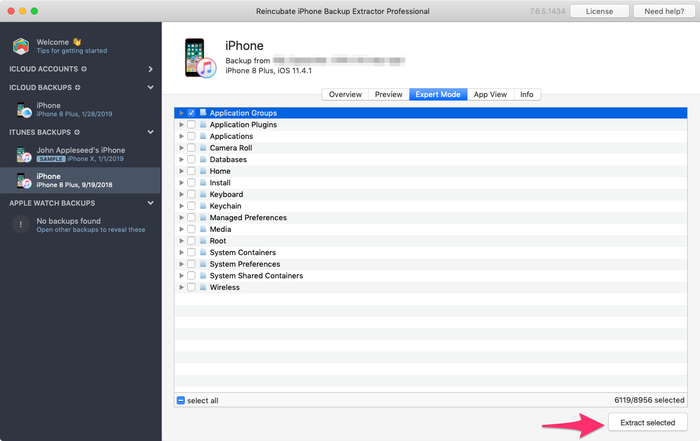
Performing iOS data recovery from apps with iPhone Backup Extractor
These folders are the primary place for an app to store its data, and they’re usually named using the same format. Back in 1996, Sun Microsystems published a programming language named Java. Java’s documentation laid out a way for third-party software publishers to publish their software without it conflicting with other authors' software. The trick was to take the name of the company’s site -- such as apple.com -- and to reverse it, before adding the name of the product. Thus, Apple’s Health app falls under com.apple.Health, and iPhone Backup Extractor rightly belongs under com.reincubate.iPhoneBackupExtractor. These names became known as “namespaces”, and Sun published a number of additional rules for them.
Apple adopted this as a best practice when designing iOS. Of course, the naming standard is only a guideline. As you can see in the example of Snapchat (snapchat.picaboo), not everyone plays by the same rules. This isn’t necessarily a bad thing, but consistency can be helpful when one is trying to recover data!
In some cases, an app’s namespace can reveal an interesting historical quirk. Instagram’s namespace is com.burbn.instagram because, well… back in 2010, Instagram was known as Burbn.
Where do popular iOS apps store their data?
The following table shows the namespaces for a number of popular iOS apps. Don’t forget, iPhone Backup Extractor has this list built into it (and it knows about the changes between different versions of the apps, and of iOS), so it always knows where to look when assisting you with recovering iOS data.
| App | iOS namespace |
|---|---|
com.facebook.Facebook, com.facebook.Messenger | |
com.burbn.instagram | |
| Snapchat | snapchat.picaboo |
| Messages | Home/Library/SMS |
| Spotify | com.spotify.client |
pinterest | |
| Skype | com.skype.skype |
| Shazam | com.shazam.Shazam |
How do iOS apps store their data, and how can it be read?
App authors are free to store data in whichever format they like in their applications. Users of iPhone Backup Extractor will tend to run across three formats if hunting for data manually in their backups:
- XML Plists
- Binary Plists
- SQLite databases
Both XML and binary Plists are often identified by having the “.plist” file extension. However, many other extensions can also indicate a file being a Plist, such as “.cookies”. Plist is an abbreviation of “Property list” and they are Apple’s preferred file format for storing a collection of simple data. XML Plists can usually be read by eye, as they are stored in plain text, but binary Plists aren’t normally understandable if plainly viewed.
Fortunately, the free edition of iPhone Backup Extractor has a Plist viewer and editor built-in: choose “View/Edit Plist” from the File menu, and you’ll be able to examine the contents of any Plist file. Alternately, in Expert mode, users can right-click on a file and choose “View as Plist”.
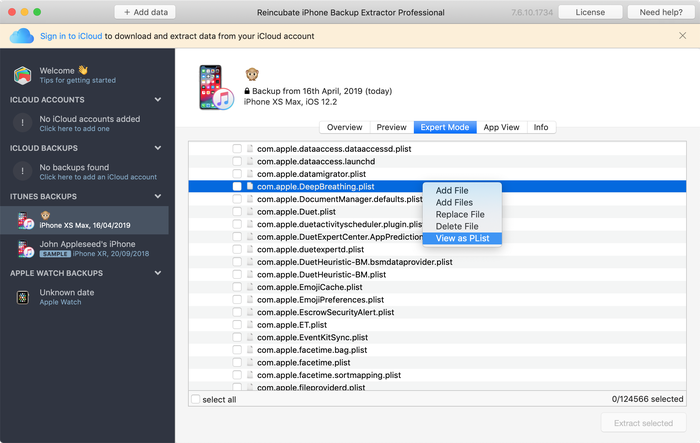
View as Plist in iPhone Backup Extractor
SQLite databases are what you might expect: collections of structured data. They are often indicated by “.db” or “.sqlite3” file extensions. These files can’t be read without a special editor, but iPhone Backup Extractor has the technology to query them for you.
What does each domain contain in an iPhone backup?
| iOS backup domain | Data found in this domain |
|---|---|
| Application Groups | Data stored here by apps is able to be shared slightly more freely on the device. Many applications will store a small amount of data here, but rarely will you see valuable content. |
| Application Plugins | Apps that store data here usually do so as part of an iOS extension. That may be as a Watch plugin, a third-party keyboard, a widget, a sharing extension, or an Animoji. This domain rarely contains user data. |
| Applications | This is the core domain for apps to store user data on an iPhone. Each app has its own namespace, as described in the “What’s in a namespace?” section above. |
| Camera Roll | The camera roll domain includes all photos, videos and metadata stored on an iOS device. If the device is configured to “Optimise Storage”, and not to store all photos locally, this domain may contain less information than one expects. |
| Databases | Little information is stored here on modern installs of iOS. |
| Health | HealthKit and medical data is stored in the Health domain, along with activity data being shared with a paired Apple Watch. |
| Home | The Home domain is a goldmine of information for many of Apple’s built-in applications, such as Messages, Notes and Calendar. |
| HomeKit | This domain stores a limited amount of information on the state of Apple HomeKit configuration. |
| Install | The Install domain contains metadata to indicate which built-in Apple apps are installed on the iOS device. |
| Keyboard | Language and keyboard configuration is stored in this domain. |
| Keychain | The iOS device’s keychain (a collection of user passwords) is stored here, in a SQLite file. |
| Managed Preferences | This domain contains data around the management of the iOS device. If your device is enrolled in an MDM (mobile device management) program, perhaps by your school or employer, some metadata will be stored here. |
| Media | Many types of media are stored under this domain. For instance, users will find attachments to SMS messages, recordings, and PhotoStream data here. |
| Root | The root domains contains fundamental configuration files for the setup of the iOS device. |
| System Containers | The system containers domain contains limited metadata from the App Store app, and some other iOS processes. |
| System Preferences | This domain contains low-level information on an iOS device’s status. For instance, you can learn about its networking configuration, or about the wi-fi networks or VPNs it has recently connected to. |
| System Shared Containers | Some iOS system processes which can share data across iOS store their data here. It is a good place to start when looking to learn more about Bluetooth activity on a device, for instance. |
| Wireless | The wireless domain contains a rich set of information on iOS’s use of cellular and wi-fi networks, and of its recent IP address assignations. |
What to do next
Why not download iPhone Backup Extractor, or read more about Reincubate and how we help customers around the world recover their data?
If you’d like to learn more about iOS or iPhone Backup Extractor, this site has a rich set of guides and articles on making the most of your data. A good place to start might be our article on what is and isn't stored in a backup. Our support centre contains a number of additional knowledge-base pieces with answers to frequently asked questions.