
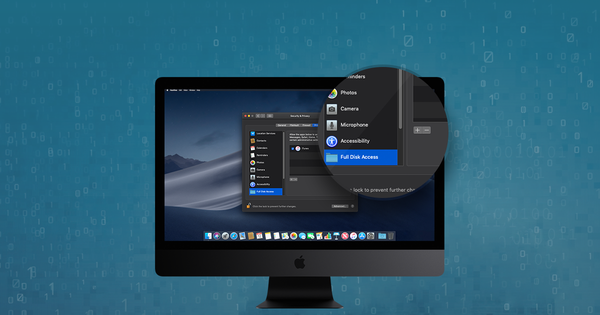
Apple introduced a number of important security mechanisms with the release of macOS Mojave in 2018. Foremost among these's a general catch-all protection, restricting access to a range of files on the filesystem, including the user's mail database, message history, Safari data, iTunes and Time Machine backups, cookies, and various other files.
This mechanism ensures that there's user consent for those files to be accessed, and protects against rogue programs or malware accessing them.
As a consequence, in order to use a macOS app to work with your iTunes backup files, you must first grant it permission.
Here's how to grant access to your iTunes backup files:
Granting access to iTunes backup files
- Open your Mac's privacy settings by clicking "System Preferences" on the Dock, selecting "Security & Privacy", and then clicking its "Privacy" tab. Alternately, go straight there with Spotlight by pressing
⌘ Cmd+⏎ Enter. - Select "Full Disk Access" from the list of privacy areas on the left-hand side of the dialog. You'll see a white pane on the right, showing a list of apps which have this level of access already. By default, the list will be empty.
- Click the lock icon on the bottom-left of the dialog to enable changing the privacy settings. You'll be prompted for your password or Touch ID fingerprint to permit this.
- Find the app that you wish to grant access, and drag it into the list, or click on the
+and browse to its location. Once you have selected the app, the Security & Privacy dialog will tell you you need to close and restart the app before the app will be able to read your iTunes backups.
iPhone Backup Extractor 7.6.2.1052 and later will automatically prompt you with these instructions and guide you through them if the app has not been granted permission.
What happens if an app tries to access iTunes backups without having permission?
The app will not be able to read the files; it will appear as if they're not there. As a consequence, you may not see any backup files, or the app may crash. You can easily see an example of this in the macOS Terminal, as -- unless you grant it permission -- will be unable to list your backups:
$ cd ~/Library/Application\ Support/MobileSync/
$ ls
ls: cannot open directory '.': Operation not permitted
If you run into any difficulties, please contact our support team with an email or live chat. We'd love to help.