
It's possible to easily import much of the data from your iPhone or iPad to an Android device, and the process differs according to the type of data.
We're sharing instructions below for migrating each of the common types of data.
- Messages (iMessage, SMS, MMS)
- WhatsApp messages
- Contacts
- Photos and videos
Let's get started.
Message and call history import from iOS to Android
If you are looking to import the Messages (iMessage, SMS or MMS) or call history from iOS to Android, first you'll have to extract the Messages and call history database file from your iTunes or iCloud backup. If you already have an iTunes backup, download and install iPhone Backup Extractor from our website. It will automatically detect this backup and you should see it listed on the left-hand screen, under the devices section, like in this image:
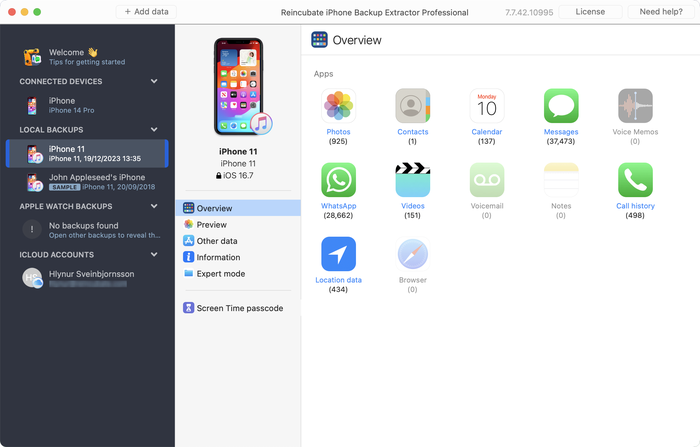
iPhone Backup Extractor showing a backup
Next, launch iPhone Backup Extractor, select the backup from the left side screen and go to Expert Mode tab.
- To extract the SMS database, expand
Home→Library→SMSand extract thesms.dbfile, like in this image:
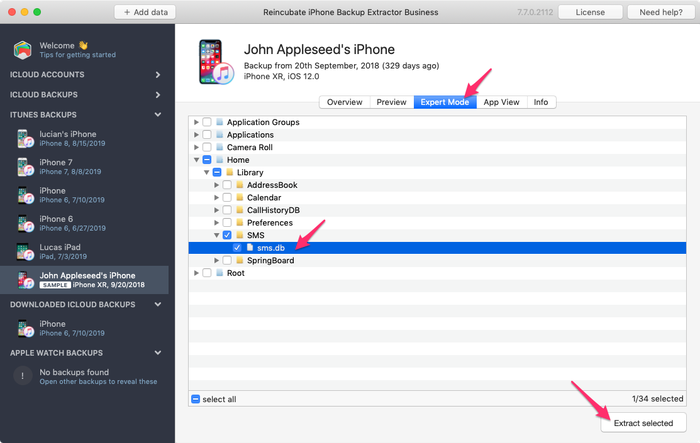
Extracting sms.db with iPhone Backup Extractor
- To extract the Call History database, expand
Home→Library→CallHistoryDB→ select and extract theCallHistory.storedatafile, like in this image:
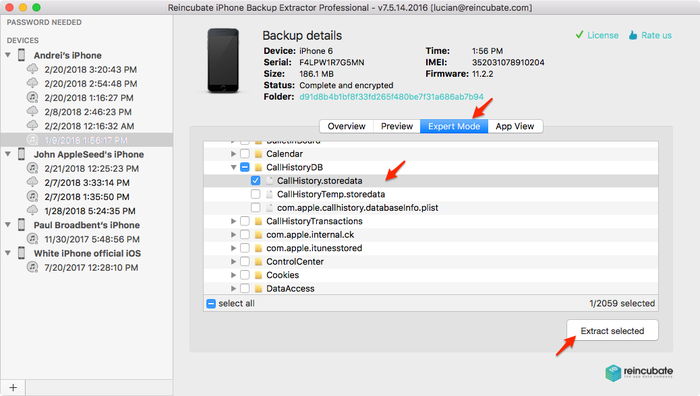
Extracting CallHistory.storedata with iPhone Backup Extractor
Once you get this file extracted, rename it from CallHistory.storedata to CallHistory.db
Copy the file(s) you want to import to your Android phone. You can use whatever transfer method you like, preferably USB, but Dropbox, Email, etc. will also work.
Next, install a free utility called iSMS2droid on your Android device, available for download from Google Play and follow the instructions from their website.
Don't forget, if you're migrating from iOS to Android, you may want to disable iMessage on your number. You can do this on Apple's site.
WhatsApp import from iOS to Android
It's possible to transfer the WhatsApp messages from an iOS backup to an Android device using iPhone Backup Extractor, and a 3rd party Android app called WazzapMigrator.
- First, you will need a backup of your iPhone. If you already have an iTunes backup, just open iPhone Backup Extractor, it will automatically detect this backup and you should see it listed on the left-hand screen, under the devices section, like in this image:
iPhone Backup Extractor showing a backup
- Select your backup, then go to Expert Mode tab and expand
Applications Group→net.Whatsapp.Whatsapp.shared→ select and extract theChatStorage.sqlitefile, like in this image:
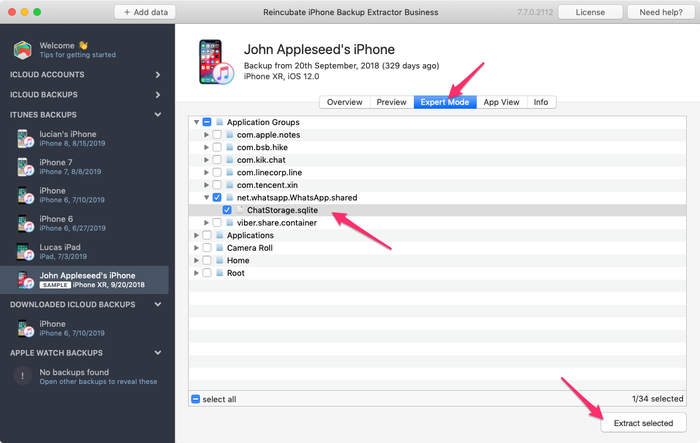
Extracting ChatStorage.sqlite with iPhone Backup Extractor
- To extract also the media files, from the same Expert Mode tab, expand
Applications→net.whatsapp.WhatsApp→Library→Mediaselect this folder and click on Extract, like in this image:
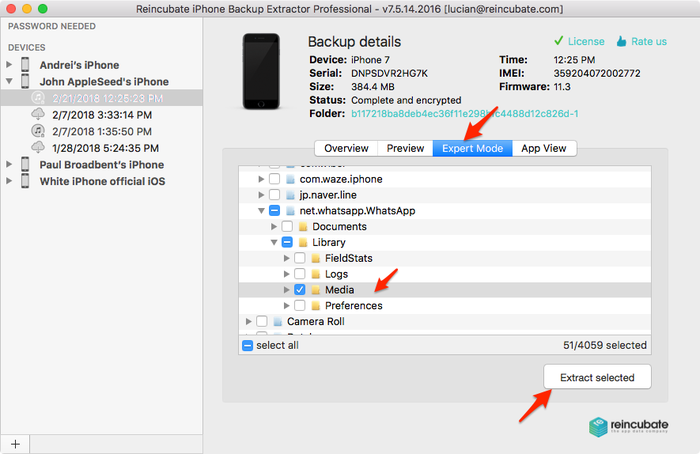
Extracting WhatsApp media with iPhone Backup Extractor
After extracting your iPhone's WhatsApp archive (ChatStorage.sqlite and Media folder) you need to move it to your new Android device. You need to put it inside the (auto-created) WazzapMigrator folder. If you can't see the auto-created WazzapMigrator folder just restart your phone.
Contacts import from iOS to Android
If you are in a pinch and need to transfer your contacts fast from iOS to your Android device, you can use iPhone Backup Extractor and follow the steps from below.
- First, you will need a backup of your iPhone. If you already have an iTunes backup, just open iPhone Backup Extractor, it will automatically detect this backup and you should see it listed on the left-hand screen, under the devices section, like in this image:
iPhone Backup Extractor showing a backup
- Select your backup, then click on the
Extract Contactsbutton from the Overview tab, like in this image:
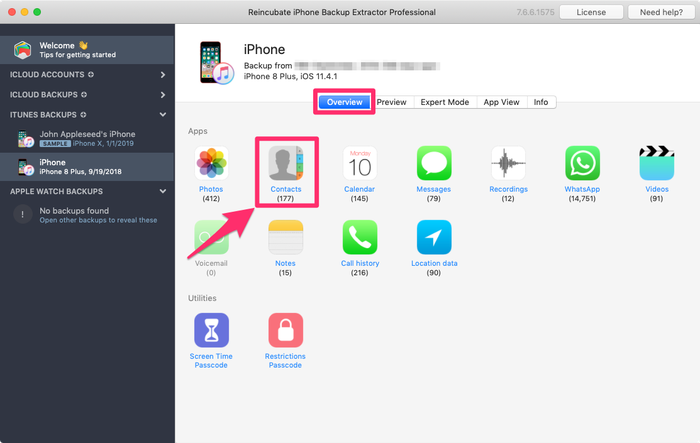
Extracting contacts with iPhone Backup Extractor
- Open the extraction folder and look for the
Contacts.vcffile and email the file to yourself. - Open the email, click on the
Contacts.vcfattachment and chose the option to import the Contacts. That’s it!
Importing Photos and videos from iOS to Android
If you are looking to transfer Photos and Videos from iOS to your Android device, you can use iPhone Backup Extractor and follow the steps below.
- First, you will need a backup of your iPhone. If you already have an iTunes backup, just open iPhone Backup Extractor, it will automatically detect this backup and you should see it listed on the left-hand screen, under the devices section, like in this image:
iPhone Backup Extractor showing a backup
- Select your backup, then click on the Extract Photos and Extract Videos buttons from the Overview tab, like in this image:
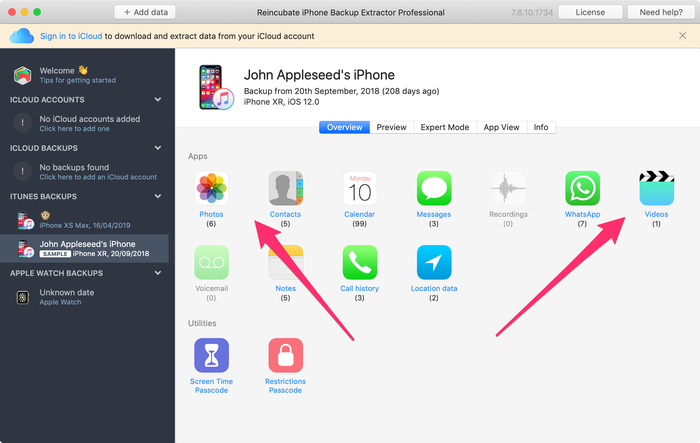
Extracting photos and videos with iPhone Backup Extractor
- Once you get your files extracted, copy the file(s) you want to import to your Android phone. You can use whatever transfer method you like, preferably USB, but Dropbox, Email, etc. will also work.