
With the release of Apple's new M1 chipset Macs, it's possible to run iOS apps on your computer. There are a few ways to do this.
The simplest is to run apps that have been officially designated for use on macOS by their authors. Where this is the case, they'll be available in the App Store on macOS as usual. However, it is possible to download and run any iOS app on your M1-powered Mac.
To do so, you'll need the free Apple Configurator 2 app installed.
- Connect your iOS device to your M1 Mac.
- Run Apple Configurator 2, select your phone and click
Add→Appsin the menu bar.
::blog-figure{src="/i/ssm/apple-configurator-add-apps.png" alt=""Add" apps in Apple Configurator"} "Add" apps in Apple Configurator ::
- If Apple Configurator isn't signed into your Apple ID, you'll need to click "Sign in" and provide your credentials.
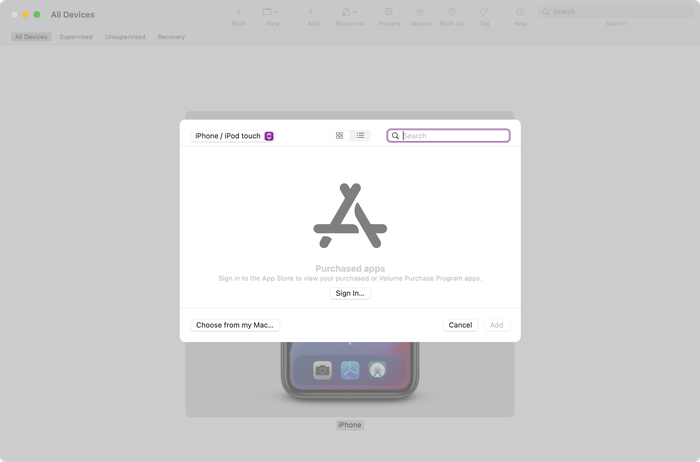
Sign-in to Apple Configurator
- Search for the app you want to download, before hitting "Add". This has to be an app that is already installed your iPhone.
If you want to choose an app that isn't currently on your phone, visit the App Store on your iOS device and hit "Install" on the app in question before restarting this process.
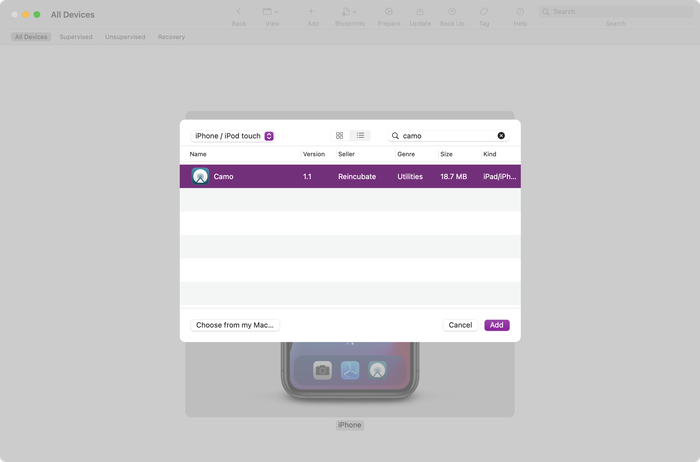
Apple Configurator ready to download an app
- A progress dialog will show whilst the app is being downloaded. When it's done, a warning will pop up, saying that the app is already installed on the phone. Leave the warning message on the screen.
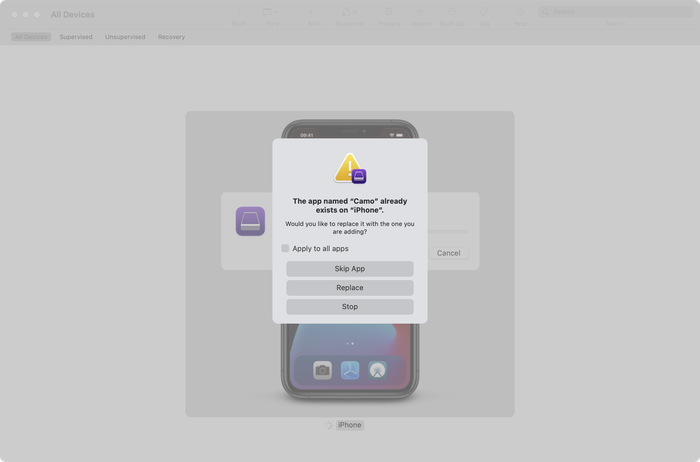
Apple Configurator's app download warning
- Switch to Finder and hit
⌘ Cmd+⇧ Shift+Gto open the "Go to folder" dialog, and paste this, before hitting⏎ Enter:~/Library/Group Containers/K36BKF7T3D.group.com.apple.configurator/Library/Caches/Assets/TemporaryItems/MobileApps - Open the folders in the new window until you get to the IPA file. Double-click it to install it on your Mac, and it'll appear in your
Applicationsfolder.
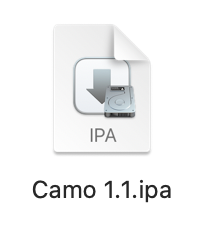
A downloaded IPA file
- The iOS app won't run until you approve it to run on your system. Open Terminal on your Mac, and paste this command in, but don't hit the enter key:
sudo xattr -rd com.apple.quarantine - Press the spacebar to add a space after that text, and then drag your app from the
Applicationsfolder onto the Terminal window. That'll add the app's path to the end of the line you pasted in. - Hit the
⏎ Enterkey and type your password before hitting⏎ Enteragain.
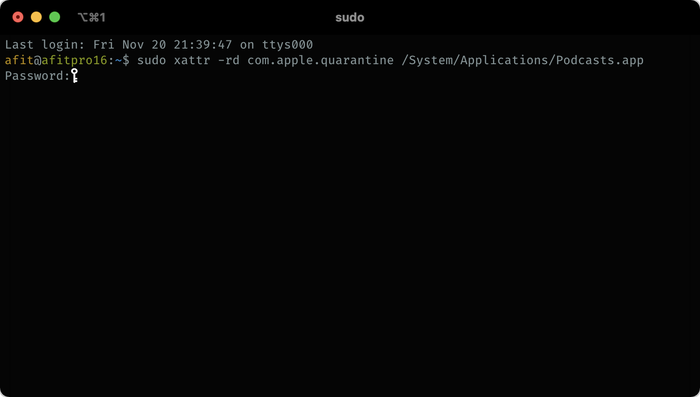
Approving an iOS app to run on a Mac
That's it — you'll now be able to run your app from Applications like any other app.
If you run into any problems, or have tips to share, please drop us a note or leave a comment below.