

Viewing iPhone location data using Google Earth
If you're curious to see exactly what tracking information your iPhone contains, then you can follow our simple guide below to extract the location data from your iPhone and plot it on a map using Google Earth.
Accessing your iPhone location data
Once Google Earth has been installed, download and run iPhone Backup Extractor. Choose your backup and wait for a short period whilst the software analyses the backup file.
At that point you'll then be able to see if there is any location data available to extract from that backup file. If so, click the "Extract" link next to the "Location Data" label and choose a folder to save the resulting location information into. We recommend using the desktop as it makes it easier to find the resulting KML file.
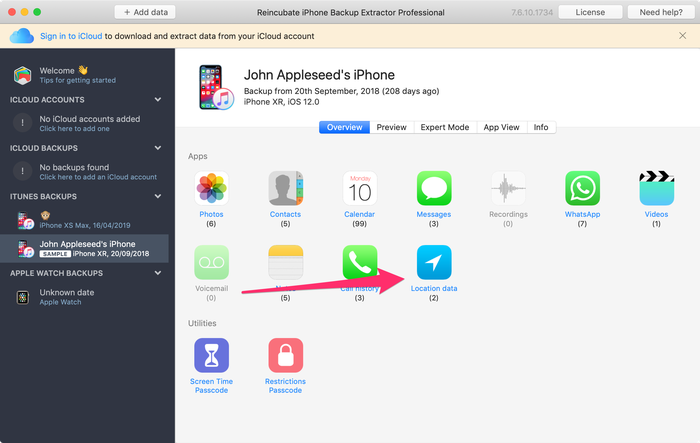
Extracting location data using iPhone Backup Extractor
Viewing your iPhone location data on Google Earth
Once you have extracted the location data, go to your desktop (or wherever you saved the data) and then double-click the Locations.KML file. This will open Google Earth and import your iPhone location information.
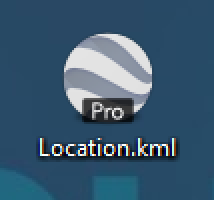
The resulting KML file on the desktop
Once within Google Earth you will see the iPhone location information as a series of yellow pins. Move around the map, zooming in as appropriate to find the location you are interested in. Click a pin to see the date and time the iPhone stored that location. Bear in mind that the iPhone only updates the location data once or twice a day, so any dates and times are only approximate.
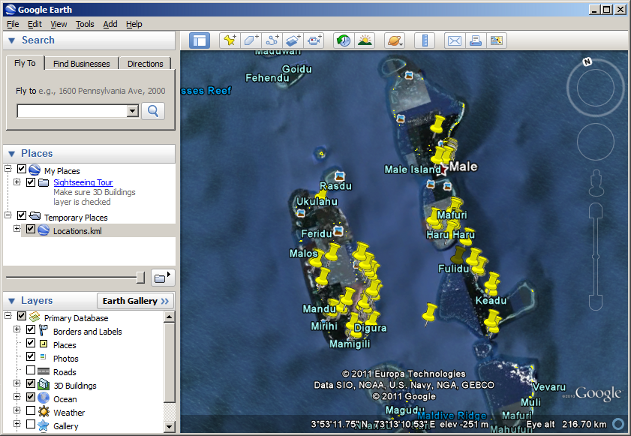
Using Google Earth
That's all there is to it. We hope you've found this tutorial to be useful and that you aren't too alarmed by what you find when you start analysing your location data... ?