
It's possible to export an iPhone or iPad's Calendar data so that you can import it to Outlook or to transfer it to another phone. You can do so with the following steps:
- Download, install and run iPhone Backup Extractor.
- iPhone Backup Extractor will show you any pre-existing backups of your device. If you don't already have a backup, you can click
Utilities→Backup. - Select your backup, and click the
Calendaricon from the overview. This will automatically extract all calendar data from your iPhone iniCalformat, including the iCloud calendar.
If you'd like to export your calendar data in CSV format, you can change this in Preferences → Extract calendar data as and choose CSV.
After using iPhone Backup Extractor and retrieving your calendar events from your backup, you might wonder how to restore them back to your iPhone, iPad or iPod.
The easiest way is to email the .ics (iCal) file containing your calendar to your iPhone or iPad, and then open and import using the Calendar app on the iOS device.
However, if you use a Microsoft email client like Outlook or Windows Live, the following article can help to import your calendars using these instead. We discuss two methods: importing iCal or CSV files, as extracted by iPhone Backup Extractor, and using iTunes to sync your device to Outlook directly.
Importing iCal or CSV calendar data to Outlook
- Open Outlook and under File, click
Open→Import.
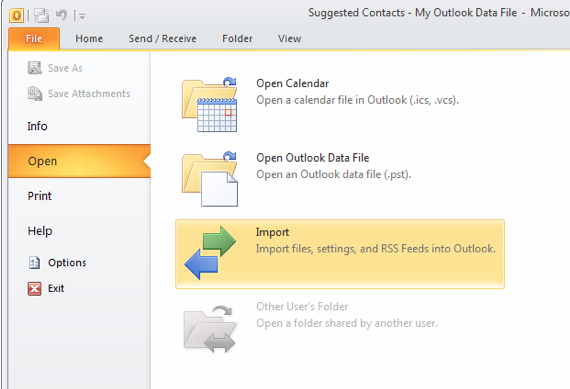
Importing iPhone calendars to Outlook
- If you're importing a CSV file, choose
Import from another program or file→Comma Separated Values (Windows). For iCal calendar files, click onImport an iCalendar (.ics) or vCalendar file (.vcs).
::blog-figure{src="/i/ssm/outlook-csv-import-2.png" alt=""Import from another program or file""} "Import from another program or file" ::
::blog-figure{src="/i/ssm/outlook-csv-import-3.png" alt="Choose "Comma Separated Values (Windows)""} Choose "Comma Separated Values (Windows)" ::
- Select the CSV or iCal Calendar file created by iPhone Backup Extractor, and choose whether you want to allow duplicates to be created or not (you probably don't!).
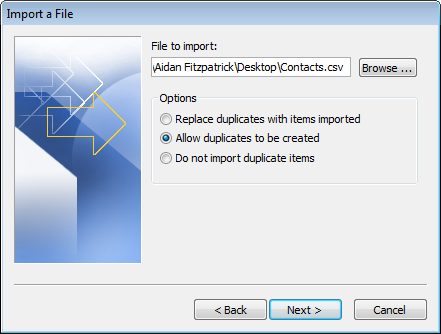
Select the iPhone calendar data to import
- Select the folder where you’d like your Calendar data to go. You’ll probably want to put it in main Outlook Calendar.
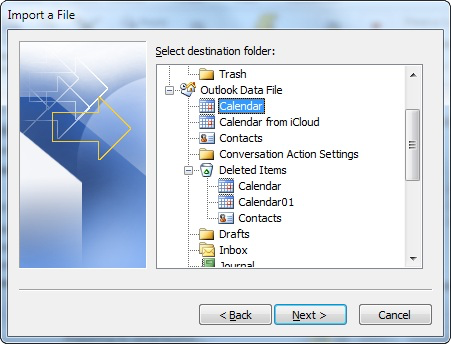
Select the calendar to import your iPhone calendar data
- Confirm the Calendar event import
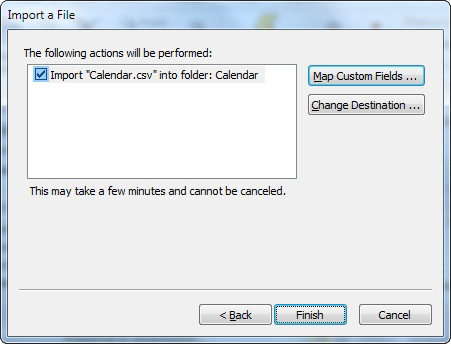
Confirm the import to Outlook
Sync your iPhone or iPad with Outlook Calendar using iTunes
If you are going to use Outlook and iTunes on an ongoing basis, syncing your calendar directly can work well.
- Open iTunes and connect your iOS device.
- Under "Devices", click the "Info" tab
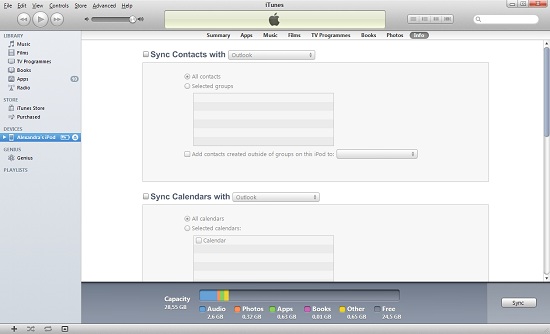
Sync Calendar with iTunes
- Click on "Sync Outlook calendars" and then "Apply" lower-right corner of your screen.
This should cover the process of importing and syncing your calendar with your iPhone and Outlook successfully.