These pages explain how to use and make the most of Camo. If haven't installed it yet, please check out getting started with Camo before returning here.
The Camo Studio window
When you first run Camo Studio, the Camo Studio window will open on your computer and should look like the image below. It will be showing its “Welcome” popup.
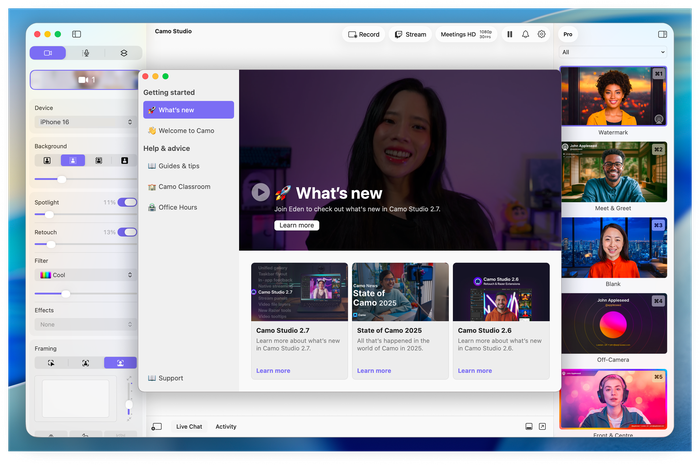
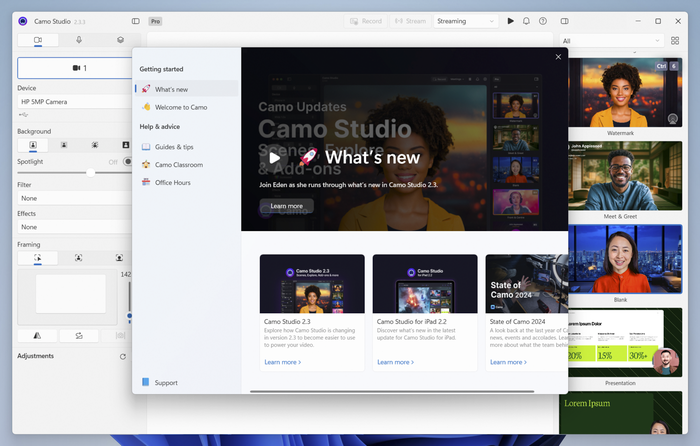
Camo Studio’s welcome screen in macOS and Windows.
If you click “close” on the welcome screen, you’ll see the Camo Studio window (You can always get back to the welcome screen by selecting Help & advice under the settings icon in the top-right of Camo Studio).
When a device is selected in Camo Studio, you’ll see a preview of the camera's video feed in the centre of the window.
Note for phone users: the “No devices connected” screen will show if a phone is connected but isn’t running Camo. To complete the connection, make sure Camo Camera is installed and running on your phone.
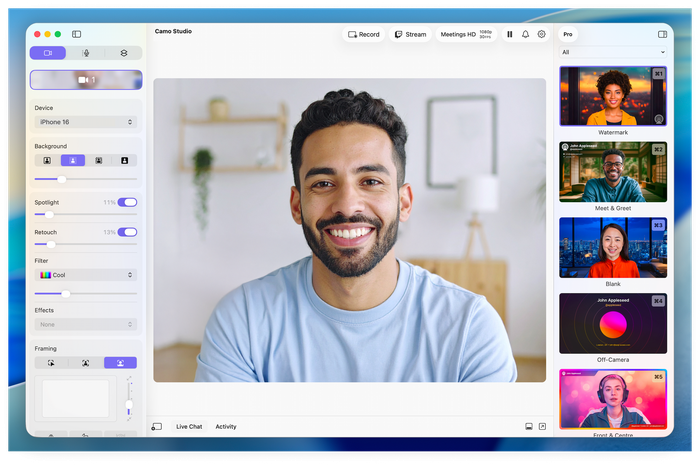
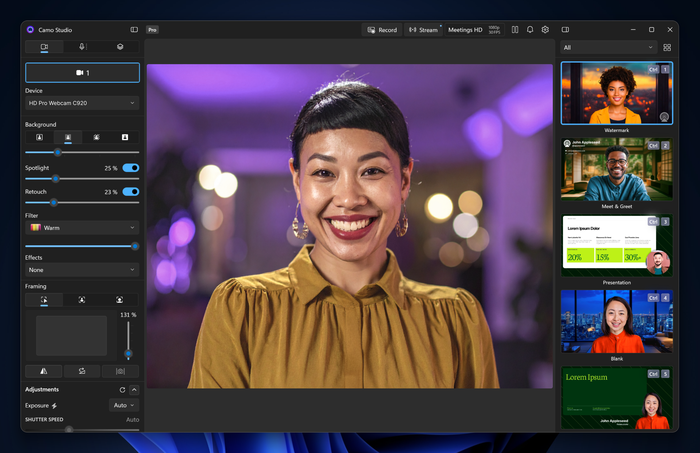
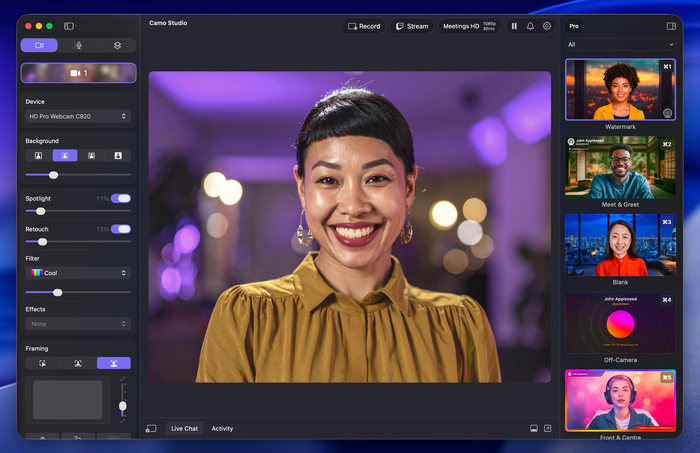
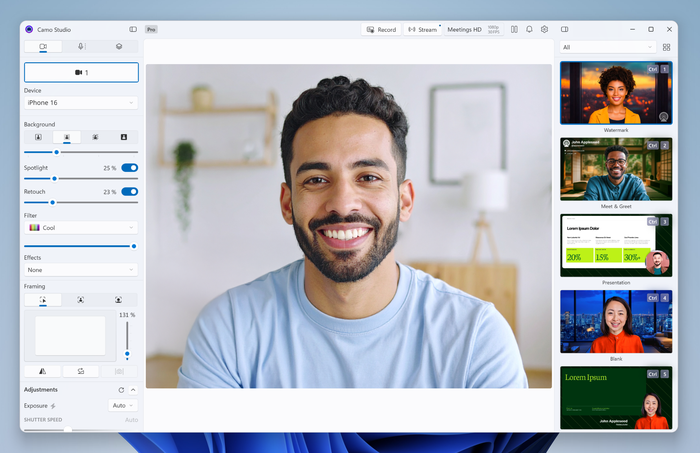
Camo Studio on macOS and Windows, in light and dark mode
The Camo Studio window can be safely closed at any time - it doesn’t have to be open for Camo to pass video through to other apps.
Camo Studio's Flyout
The Flyout is a quick-access panel that gives you a live preview of your camera feed alongside the controls you're most likely to need mid-call or mid-stream: a Scene selector with a Collections filter, Record, Pause/Resume, a button to show or hide the full app window, and more.
You can access the Flyout by clicking on the Camo Studio icon shown in the macOS menubar or Windows taskbar, or by pressing ⇧ Shift + ⊞ Win + E on Windows or ⇧ Shift + ⌘ Cmd + E on macOS.
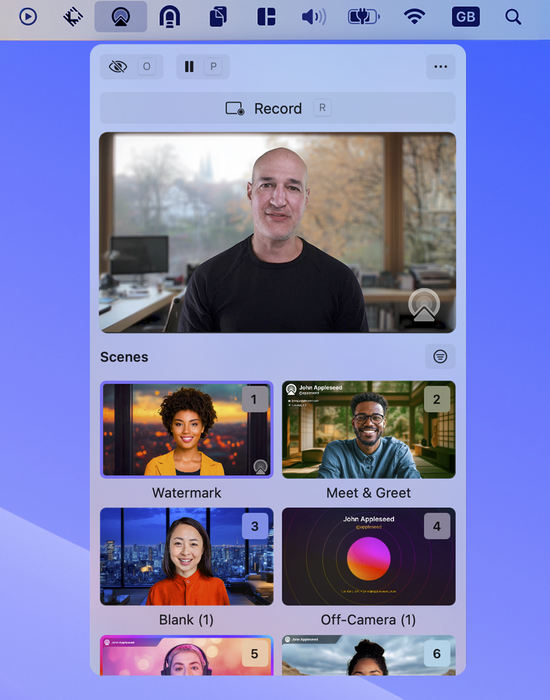
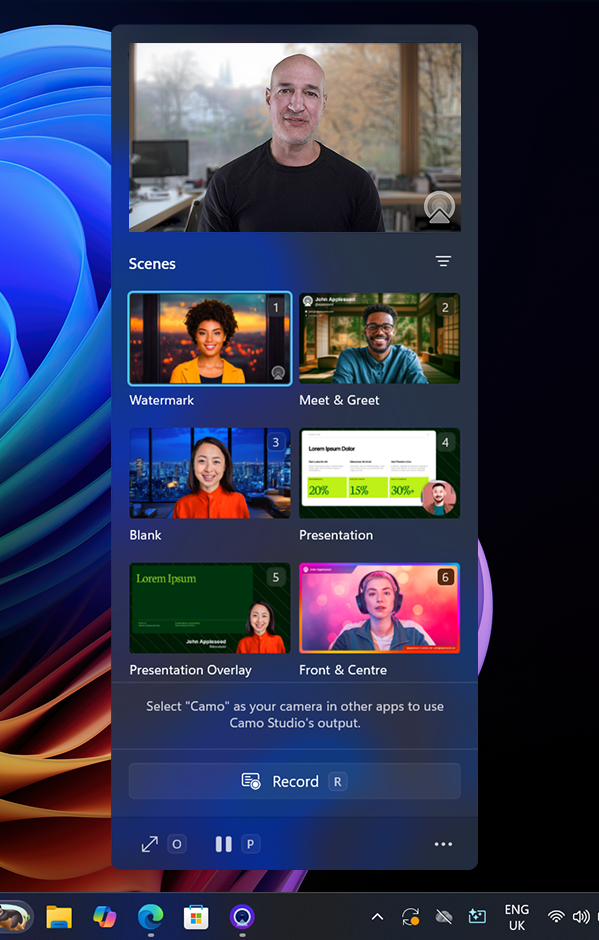
Camo Studio’s menubar (left) and taskbar (right) flyouts on macOS and Windows, respectively.
Camo Studio status indicator
The Camo Studio icon in the menu bar indicates Camo's current state. The screenshot below shows the idle, ready, active, and warning states, respectively. These indicate the following:
- Idle: no device is connected or selected in Camo Studio, it is not prepared to send video if asked to do so
- Ready: a device is selected and its video is ready for use
- Active: a device is selected and its video is currently being used by another app
- Warning: Camo Studio has detected a problem; a device might not be working as expected, or another app is trying to use its video but there is no device connected or selected
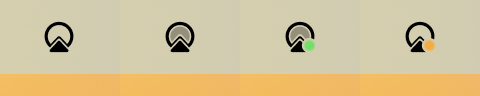
Camo Studio showing idle, ready, active, and warning
Screen Curtain
The controls for Camo are all located on your desktop, so if you're using a phone as your webcam, you won't need to use its screen once it's connected. To this end, version 1.3 of Camo introduced screen curtain, which keeps your phone's screen dimmed while using Camo. This will prevent distraction, keep the device cool, and improve privacy and power usage. Screen curtain is automatically enabled, and can be adjusted in Settings > Mobile Devices (Preferences > Mobile Devices on macOS), where you can set it to Automatic (the default), always On, or Off.