
How to extract Safari history and searches from an iOS device or Mac
With iPhone Backup Extractor, you can access data from Apple's built-in apps. If you want to recover your Safari history or check the recent searches you've made, here's how to do this and more.
Navigate to "App view" in iPhone Backup Extractor, then select the Safari application and extract all the files.
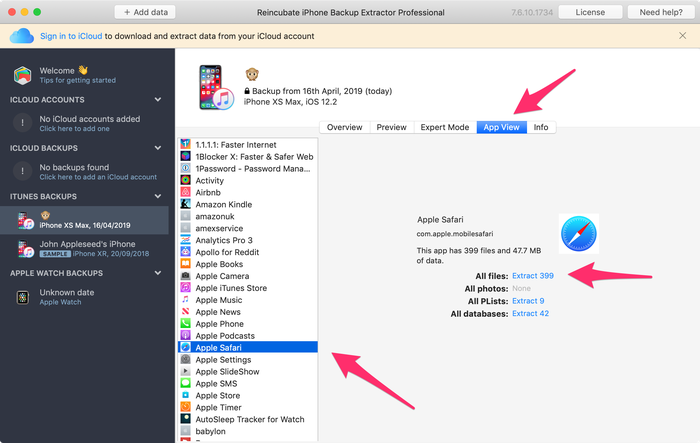
Examining Safari data with iPhone Backup Extractor
You might notice that some of the extracted files have a .plist extension. You can view/edit these files by going to the File menu of the iPhone Backup Extractor and by clicking on View / Edit PList. Choose the file you want to view and click Open.
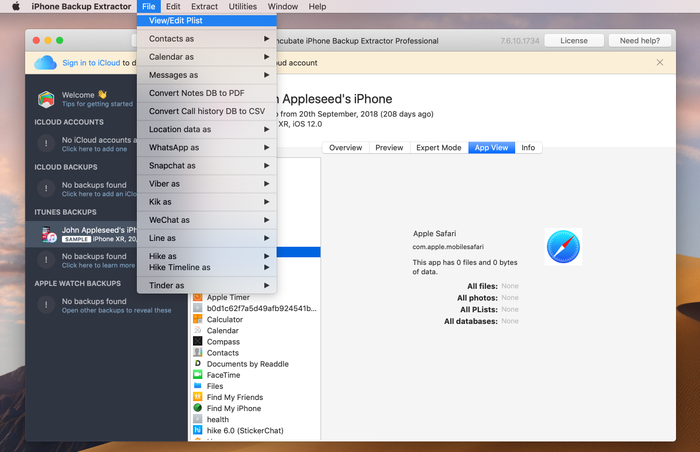
Opening Plist files
To view your Safari browsing history, you have to open the file History.db.
To browse your latest searches made on Safari, open the file RecentSearches.plist.
If your backup pre-dates the history being deleted on an iPhone, iPad -- or on a Mac sharing the same iCloud account -- you'll be able to see all of the deleted data. Neat, huh? ?
Below you can see a screenshot of the recent searches file, as extracted by iPhone Backup Extractor. The search queries are between the tags.
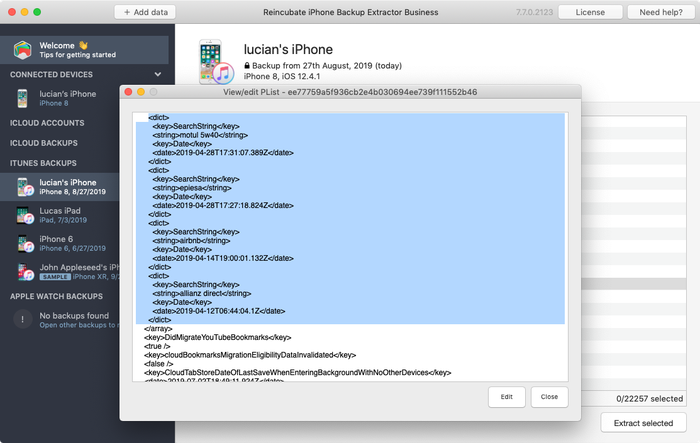
Recent searches and history from Safari
How do I get my Safari bookmarks from an iTunes backup?
We know how important bookmarking your favourite websites can be, but what happens if you lose or delete your bookmarks on your iPhone, iPad or iPod? If you've backed up your iOS device in iTunes it's possible to recover these, and today we're going to look at how this can be done with iPhone Backup Extractor.
Your bookmarks, along with other important data such as WhatsApp messages, contacts, SMS (etc.) are stored in your iPhone backup, and -- with the right tools -- can be easily read. In particular, iPhone Backup Extractor can extract the bookmarks.db that Safari uses to store your bookmarks.
You can access that file with the steps below:
- Open iPhone Backup Extractor and select the backup you wish to extract bookmarks from
- Select "Expert Mode"
- Navigate to the
Libraryfolder, then to theSafarisubfolder - Select the
bookmarks.dbfile - Click the "Extract selected" button and choose a folder to save the
bookmarks.dbfile
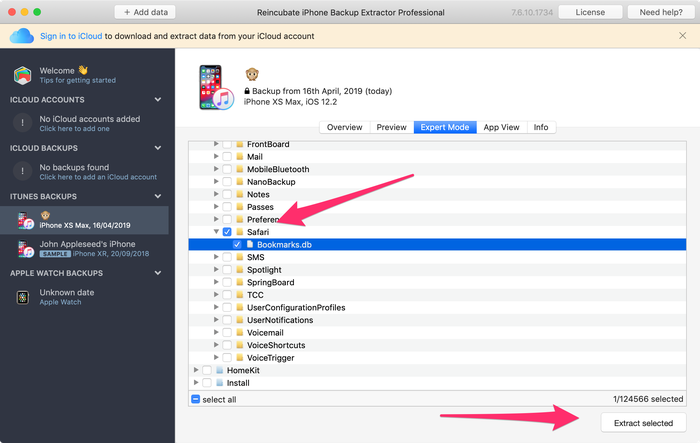
Recovering Safari bookmarks
How to read the Safari bookmarks database
This isn't rocket science, so don't panic! ? This database file is in SQLite format, and we need another tool to read those files. Our note below includes links to get the best SQLite reading tools, but for now we'll assume you're using the Mozilla add-on named "SQLite Manager".
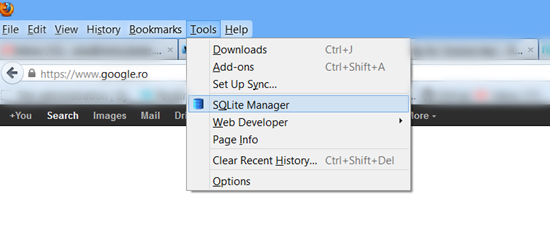
SQLite Manager
Open SQLite Manager and open the bookmarks.db file you extracted. Make sure you select the "All files" option, so you can see the .db file to open it.
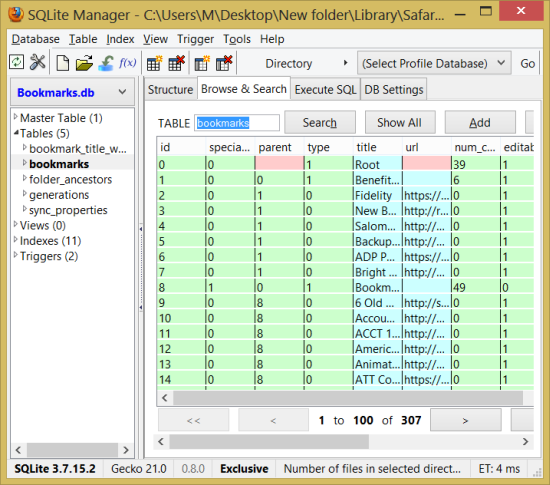
Querying the Safari bookmarks database
Once the database is open, select the bookmarks database and you will see the title and URL fields and your bookmarks will be revealed. And that's all -- you now see all of your bookmarks.
If you wish to try some SQL and show just the two fields, use:
SELECT title, url FROM bookmarks
...in the "Execute the SQL file" tab. If you do this, you'll find you can even save the results to CSV.
How to read the Safari reading list
The bookmarks table also contains Safari reading list, which can be distinguished from bookmarks by the fact they have no value for the column extra_attributes. Therefore, you can use the following query:
SELECT url,title
FROM bookmarks
WHERE url NOT LIKE '' and extra_attributes NOT LIKE '';
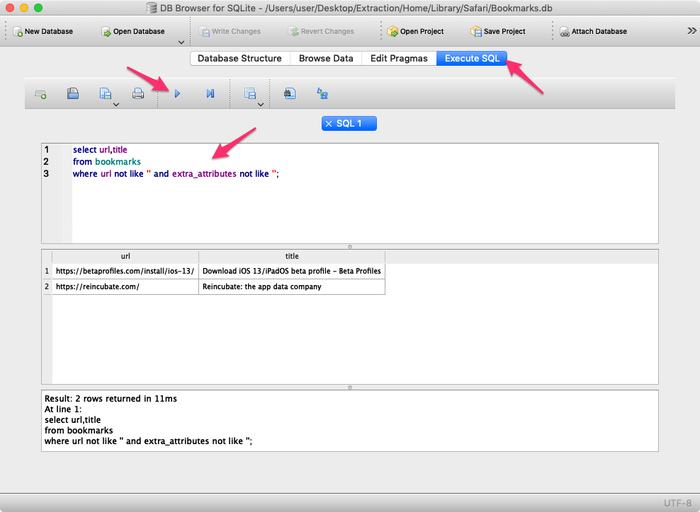
Extracting the Safari Bookmarks and Reading List database
How to recover Safari open tabs from an iTunes backup
If you have lost your Safari open tabs on your iPhone, iPad or iPod, it's possible to recover these if you've backed up your iOS device in iTunes. Here's how this can be done with iPhone Backup Extractor.
The Safari open tabs are stored in a database file, called BrowserState.db. You can access that file with the steps below:
- Open iPhone Backup Extractor and select the backup you wish to extract open tabs from
- Select "Expert Mode" tab
- For pre-iOS 13 backups, navigate to the
Applicationsfolder, expandcom.apple.mobilesafari→Safari - For iOS 13 or newer backups, navigate to the
Homefolder, expandLibrary→Safari - Select the
BrowserState.dbfile - Click the "Extract selected" button and choose a folder to save the
BrowserState.dbfile
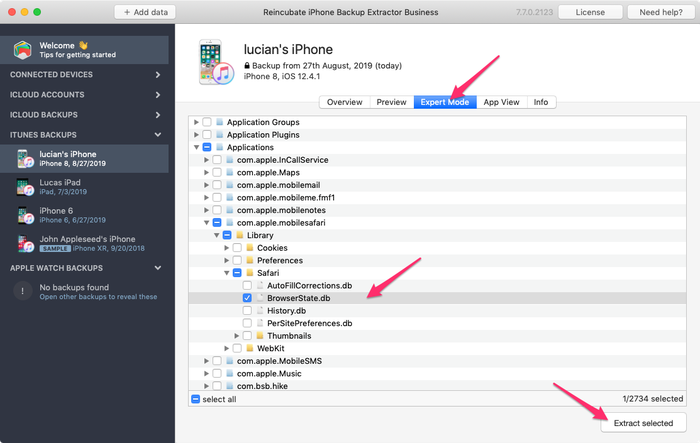
Extracting the Safari BrowserState database
How to read the Safari open tabs database
The BrowserState.db database file is in SQLite format, and we need another tool to read those files. In this example, we are using DB Browser for SQLite, but you can use any SQLite viewer/editor that you prefer.
- Open DB Browser for Sqlite and open the
BrowserState.dbfile you extracted. - Go to
Browse datatab and select thetabstable
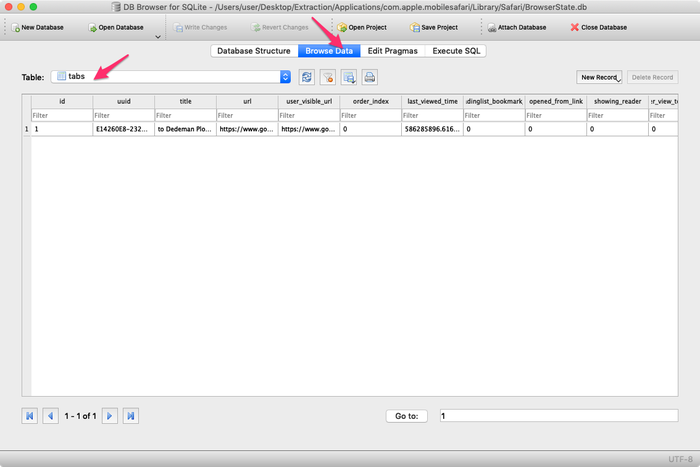
Querying the Safari BrowserState database using SQLite editor
As you can see in the above screenshot, the last_viewd_time column from the database is in unix timestamp format. If you would like to convert it to a date time format, you can use this SQL command:
SELECT id, title, url, datetime(last_viewed_time, 'unixepoch', '31 years', 'localtime') AS timestamp FROM tabs
You can also export the Safari open tabs into a CSV file using the DB Browser File menu → Export → Table(s) as CSV file
If you get stuck, reach out to us via live chat or email, and we'll do our best to help!